Team Settings
Configure your team's basic information and manage team lifecycle.
Configure your team's basic information and manage team lifecycle.
Accessing Team Settings
- Ensure you're in your team account
- Click Settings in the sidebar
- The URL is
https://sellfaster.euhome/[team]/settings
Note: Access to team settings requires the
settings.managepermission, which is granted to team owners.
Team Information
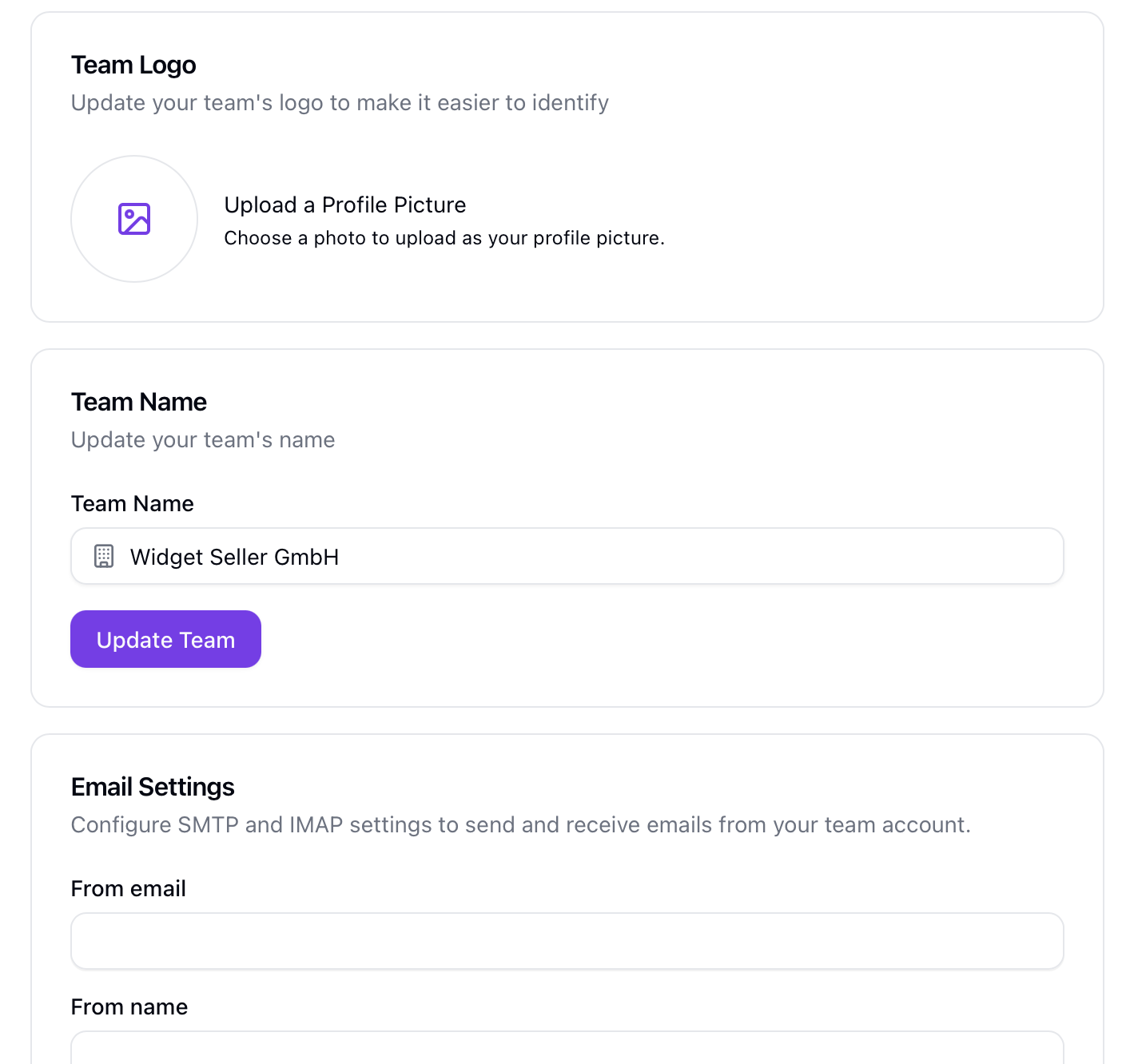
Team Logo
Upload or change your team's logo:
- Click the current logo/placeholder
- Click Upload
- Select an image file
- Save
The logo is stored in Supabase storage and appears in the account switcher and team pages.
Team Name
Update your team's name:
- Find the Team Name field
- Enter the new name
- Click Save
The team name appears:
- In the account switcher
- On team pages
- In notifications
Team Email Settings
Configure team email for outbound communications:
Basic Email Settings
| Field | Description |
|---|---|
| From Email | Email address used as sender (required) |
| From Name | Display name for outgoing emails (optional) |
| Email Signature | Signature appended to emails (optional) |
SMTP Configuration
Configure your outgoing email server:
| Field | Default | Description |
|---|---|---|
| Host | SMTP server hostname (required) | |
| Port | 587 | SMTP port (required) |
| Use TLS | Off | Enable TLS encryption |
| Username | SMTP authentication username | |
| Password | SMTP authentication password |
IMAP Configuration
Configure your incoming email server:
| Field | Default | Description |
|---|---|---|
| Host | IMAP server hostname (required) | |
| Port | 993 | IMAP port (required) |
| Use TLS | On | Enable TLS encryption |
| Username | IMAP authentication username | |
| Password | IMAP authentication password |
Note: When updating email settings, you can leave password fields blank to keep the existing password. A placeholder will indicate if a password is already set.
GDPR Settings
Note: GDPR Settings are only accessible to the team owner.
Navigate to Settings → GDPR Settings (URL: https://sellfaster.eu/home/[team]/settings/gdpr) to configure data-retention rules and handle data subject requests.
Orphan Data Retention
An orphan lead is a lead that has no linked sale or interaction. Orphan leads accumulate over time as old records are never contacted again.
| Setting | Default | Description |
|---|---|---|
| Max retention time of GDPR-relevant data without sale/interaction (days) | 180 | After this many days without any interaction or sale, the system automatically disconnects the lead's address and clears all comments and notes. Maximum value: 36 500 days (100 years). |
Setting this to a lower value reduces your data-retention footprint for inactive leads and helps demonstrate compliance with storage-limitation principles under the GDPR.
GDPR Customer Requests
Note: This section is only visible to the team owner.
Use these tools to respond to formal data subject requests (DSARs) without needing direct database access.
Search — Find a customer by entering their name and/or street address. The results show counts of all data associated with the matching lead (interactions, sales, custom field values, email transactions).
Export (Access Request) — Download a complete JSON export of all data associated with a lead. Share this with the data subject to fulfill a Subject Access Request (SAR).
Erase (Erasure Request) — Permanently anonymize the lead and all related records. After selecting a lead, you must confirm the action via a one-time password (OTP) sent to your email. This action is irreversible.
For full step-by-step instructions and details on all GDPR controls, see GDPR Settings & Data Protection.
Danger Zone
Leaving the Team
Non-owner members can leave the team:
- Navigate to the Danger Zone section
- Click Leave Team
- Type "LEAVE" in the confirmation field
- Click Confirm
After leaving:
- You lose access to the team immediately
- Your content remains with the team
- You can be invited back later
Note: Primary owners cannot leave a team. Transfer ownership first if you need to leave.
Deleting the Team
Primary owners can delete the entire team:
- Navigate to Danger Zone
- Click Delete Team
- Read the warning
- Complete OTP verification (a 6-digit code will be sent to your email)
- Enter the code and confirm deletion
Warning: Deleting a team permanently removes all data including:
- All team members
- All campaigns
- All leads and interactions
- All sales and commission data
- All configuration
This action cannot be undone.
Saving Changes
Changes to team settings are saved when you click the Update Team button. You'll see a confirmation notification when changes are saved successfully.
Troubleshooting
Can't Access Settings
If you can't access settings:
- Check your role in the Members page
- Contact your team owner
Changes Not Saving
If changes don't save:
- Check for validation error messages
- Verify all required fields are filled
- Check your internet connection
- Try refreshing the page
Logo Won't Upload
If logo upload fails:
- Check file size (must be under the limit)
- Verify file format (JPG, PNG supported)
- Try a different image
- Clear browser cache
Can't Delete Team
If you can't delete the team:
- Verify you are the primary owner
- Check if the feature is enabled for your organization
- Complete the OTP verification correctly
Related Topics
- Member Management - Managing team members
- Billing - Team subscription
- Team Overview - Team basics
- GDPR Settings & Data Protection - Full GDPR configuration guide