Learn how to navigate Sellfaster efficiently using the sidebar, account switcher, and other navigation elements.
Application Layout
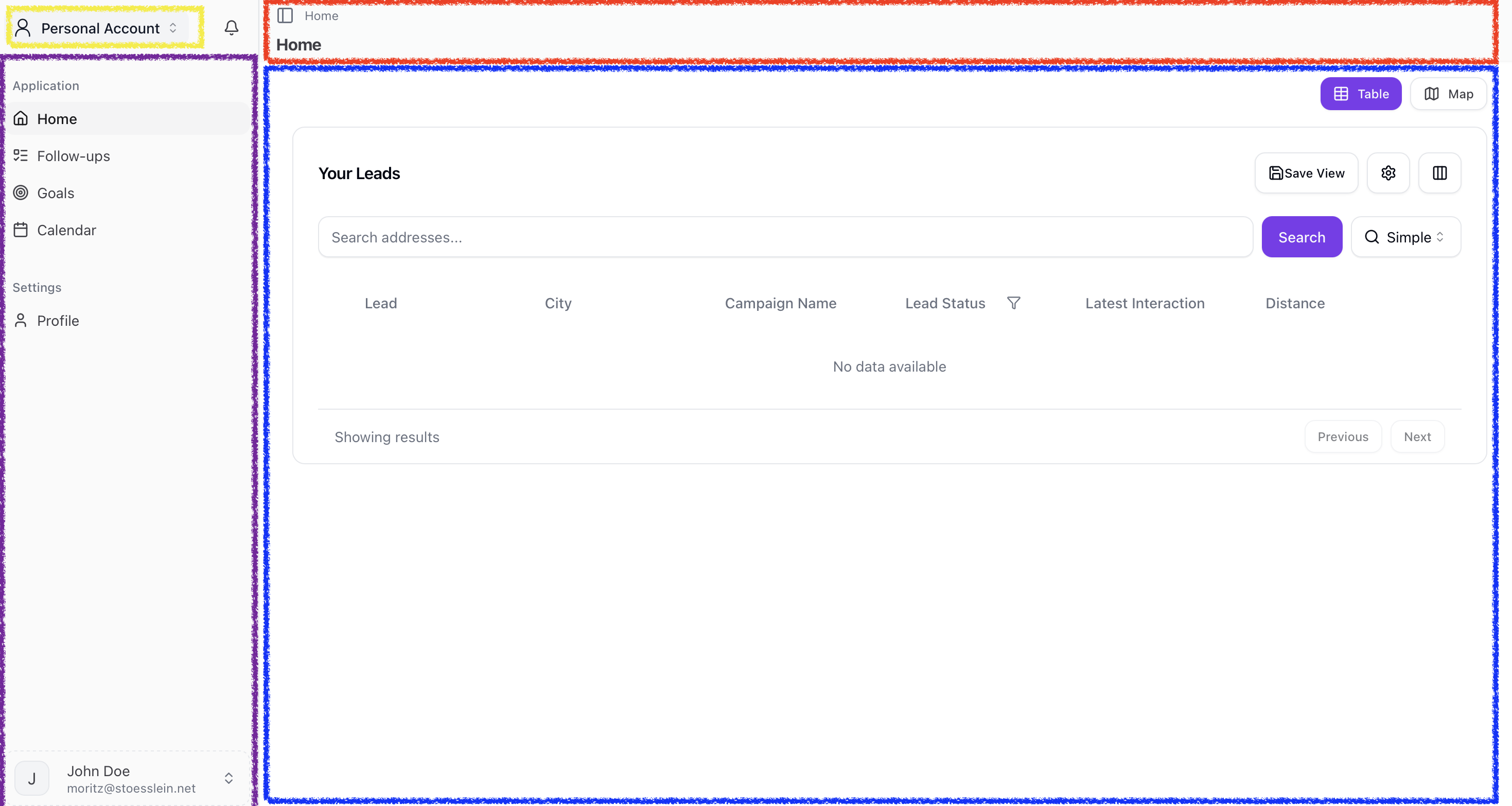
The Sellfaster interface consists of several key areas:
| Area | Description |
|---|---|
| Sidebar (purple) | Main navigation menu on the left |
| Account Switcher (yellow) | Toggle between personal and team accounts |
| Header (red) | Page title and actions |
| Main Content (blue) | Primary workspace area |
Sidebar Navigation
The sidebar provides access to all main features. Its contents change based on whether you're in your personal account or a team account.
Personal Account Navigation
When in your personal account, you'll see:
- Home - Your personal dashboard
- Follow-Ups - Scheduled tasks and reminders
- (Your Views) - if you have configured any
- Goals - Personal bonus targets
- Calendar - Your schedule
- Profile - Account settings
Team Account Navigation
When in a team account, you'll see:
Application Section:
- Dashboard - Team analytics dashboards
- Projects - Territory and campaign management
- Inventory - Product catalog
- Addresses - Global address list
- States - Interaction state configuration
- Custom Fields - Field definitions
- Sale Models - Sales workflow configuration
- Sales - Team sales records
- Commission - Earnings and payslips
- Calendar - Team schedule
- Bonus Targets - Team goals
Settings Section:
- Settings - Team configuration
- Members - Team member management
- Audit - Activity logs (owners only)
- Billing - Team subscription
Account Switcher
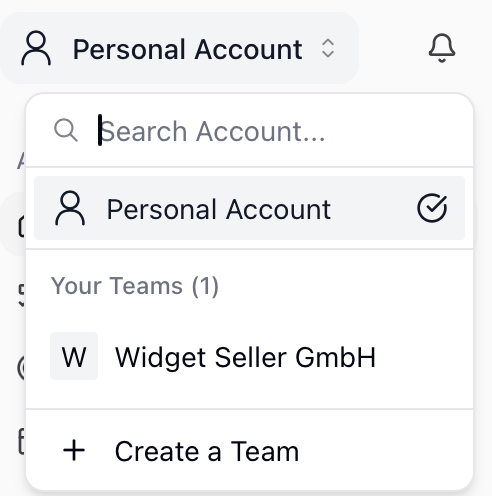
The account switcher lets you move between your personal account and team accounts.
Switching Accounts
- Click the account switcher in the sidebar (shows current account name)
- View available accounts in the dropdown
- Click an account to switch to it
Creating a New Team
- Open the account switcher
- Click Create Team
- Enter the team name
- Click Create. Note: each team requires a new subscription.
Account Indicator
The current account is indicated by:
- The account name in the sidebar
- The account avatar/logo
- A checkmark in the account switcher dropdown
Collapsible Sidebar
To maximize workspace area, you can collapse the sidebar:
- Click the collapse button (to the left of the breadcrumb menu)
- The sidebar shrinks to show only icons
- Hover over icons to see labels
- Click expand to restore full sidebar
Breadcrumbs
On detail pages, breadcrumbs help you understand your location and navigate back:

Click any breadcrumb item to navigate to that level.
Quick Actions
Common actions are accessible from multiple locations:
Table Header Actions
The table header often contains:
- Add/Create buttons for new items
- Search for finding content
- Filter to narrow results
- Export to download data
Context Menus
Click the ⋮ (three dots) icon on items to access:
- View
- Edit
- Archive
- Other item-specific actions
Notifications
- Look for the bell icon in the header
- A badge shows unread notification count
- Click to view recent notifications
- Click a notification to navigate to the relevant item
User Menu
Click your profile avatar in the sidebar to access:
- Home - Your personal account space
- Documentation - This documentation
- Theme - Switch between light and dark mode
- Sign Out - End your session
Keyboard Navigation
For power users, keyboard navigation is supported:
| Key | Action |
|---|---|
Tab | Move between elements |
Enter | Activate buttons/links |
Escape | Close modals/dropdowns |
Arrow keys | Navigate lists |
Mobile Navigation
On smaller screens:
- The sidebar collapses into a hamburger menu
- Tap the menu icon to open navigation
- Tap outside to close
- Most features remain accessible
Tips for Efficient Navigation
- Use the account switcher to quickly move between contexts
- Bookmark frequently used pages in your browser
- Learn keyboard shortcuts for common actions
- Collapse the sidebar when you need more workspace
- Use breadcrumbs instead of the back button for consistent navigation