Import addresses in bulk using CSV files. This is the fastest way to add a large number of leads to your account at once.
Accessing CSV Import
You can start a CSV import from two places:
- From Leads — Click Add Lead > Import CSV
- From Campaign Leads — Use the import option within a campaign
CSV File Requirements
Your CSV file must meet the following requirements:
| Requirement | Details |
|---|---|
| File Type | .csv |
| Encoding | UTF-8 or ANSI (auto-detected) |
| Delimiters | Comma (,) or semicolon (;) — auto-detected |
| Headers | First row should contain column names |
| Quoting | Values containing commas or special characters should be wrapped in double quotes (") |
| Empty Lines | Empty lines are skipped automatically |
Expected CSV Columns
| Column | Required | Description |
|---|---|---|
street_address | Yes | The street address |
city | Yes | City name |
country | Yes | Country name or code |
state | No | State or province |
postal_code | No | ZIP or postal code |
name | No | Contact or building name |
building_units | No | Number of units (for apartment buildings) |
| Custom Fields | No | Any custom fields configured for your team — mapped via the UI during import |
Example CSV
street_address,city,country,state,postal_code,name
"123 Main St",Springfield,US,IL,62701,"John Doe"
"456 Oak Ave",Springfield,US,IL,62702,"Jane Smith"
"789 Pine Rd",Chicago,US,IL,60601,""
Import Steps
The import follows a 3-step wizard:
Step 1: Upload
- Select your CSV file
- The delimiter is auto-detected from the file content
- Optionally enable AI mapping suggestions to automatically match columns
Step 2: Mapping
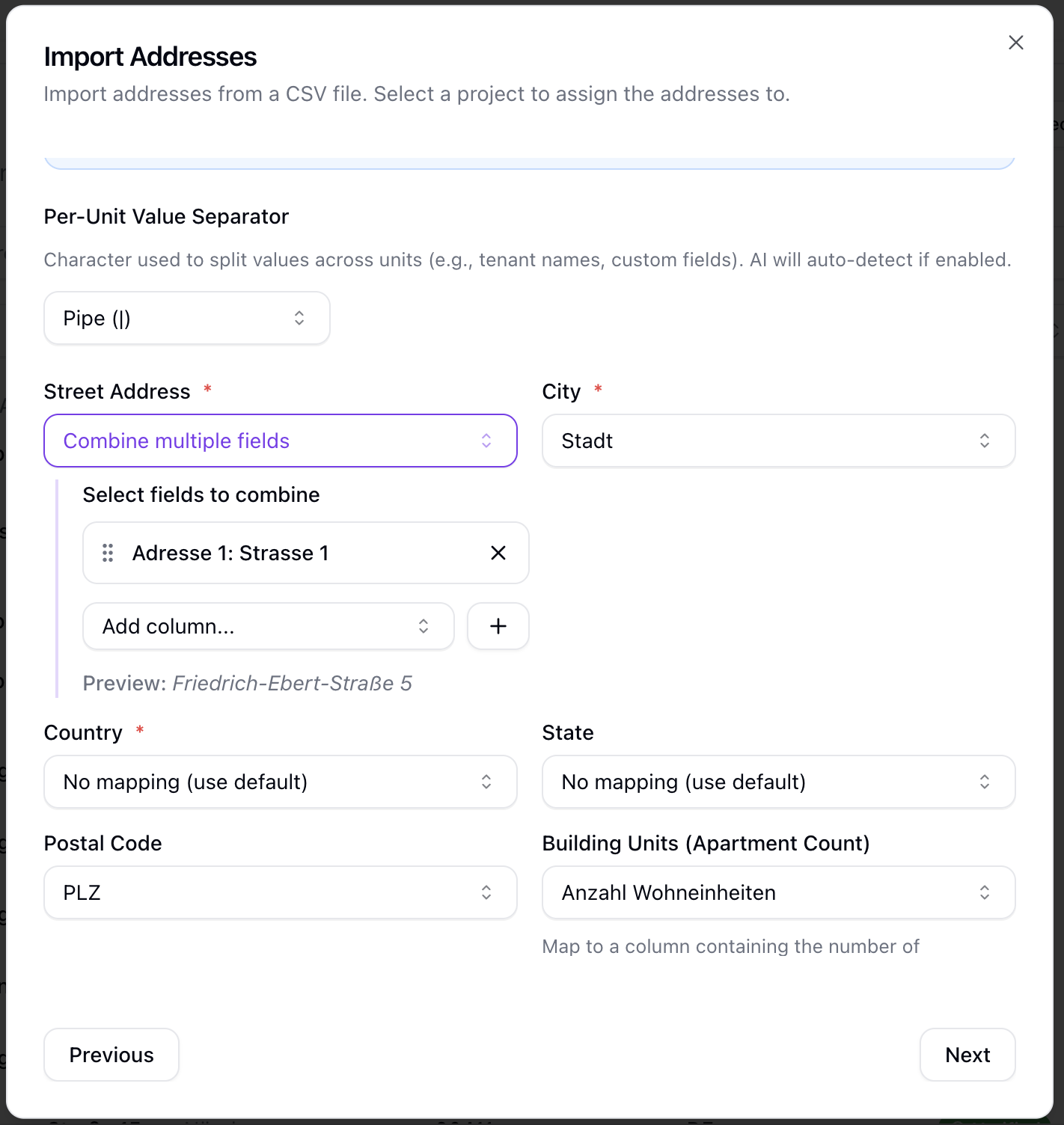
- Map each CSV column to an address field
- Combine columns if needed (e.g., separate first name and last name columns into a single name field)
- Map any custom fields configured for your team
- Unmapped columns are ignored during import
Step 3: Defaults
- Set default values for any optional fields that are not mapped
- These defaults apply to all imported rows where the field is empty or unmapped
AI-Powered Mapping
When enabled, the system analyzes your CSV column headers and suggests mappings automatically. This is especially useful when your CSV uses non-standard or localized column names. You can review and adjust the suggestions before proceeding.
Duplicate Handling
During import, the system checks for duplicate addresses. For each detected duplicate, you can choose:
- Skip — Do not import the duplicate row
- Merge — Combine the new data with the existing address
- Create — Import as a new address regardless
Import Progress
The import runs in the background. A progress indicator shows:
- Total rows to process
- Successfully imported count
- Errors or skipped rows
You can continue using Sellfaster while the import completes.
Troubleshooting
Import Fails to Start
- Verify the file is a valid
.csvfile - Check that the file is not empty
- Ensure the file size is within limits
Rows Not Importing
- Verify required columns (
street_address,city,country) are mapped - Check for missing values in required fields
- Review error messages for specific rows
Wrong Data in Fields
- Review your column mapping in Step 2
- Check that the CSV delimiter matches the file content
- Ensure quoted values are properly closed
Encoding Issues
If you see garbled characters:
- Re-save your CSV as UTF-8 encoded
- Most spreadsheet applications offer UTF-8 as an export option
Related Topics
- Team Leads - Managing all team addresses
- Campaign Leads - Campaing-specific address management
- Custom Fields - Configure additional fields for addresses