This guide provides step-by-step instructions for recording interactions with leads - the core activity in Sellfaster.
What is an Interaction?
An interaction is a record of contact or activity with a lead. Unlike some CRM systems with fixed types like "Visit" or "Call", Sellfaster uses configurable interaction states that your team administrator defines. This allows complete flexibility in how your team categorizes interactions.
Common interaction states teams might configure include:
- Contact Made
- Not Home
- Appointment Set
- Follow-Up Required
- Email Sent
Your available states depend on your team's configuration and may vary by campaign.
Prerequisites
Before recording interactions:
- You must be signed in
- The leadmust exist within a campaign
- You need the
interactions:createpermission
Recording from Lead Detail
The primary way to record an interaction:
- Navigate to the lead
- Go to your campaign:
/home/[team]/projects/[campaign]/addresses/[address] - Or find the lead through your campaign's lead list
- Go to your campaign:
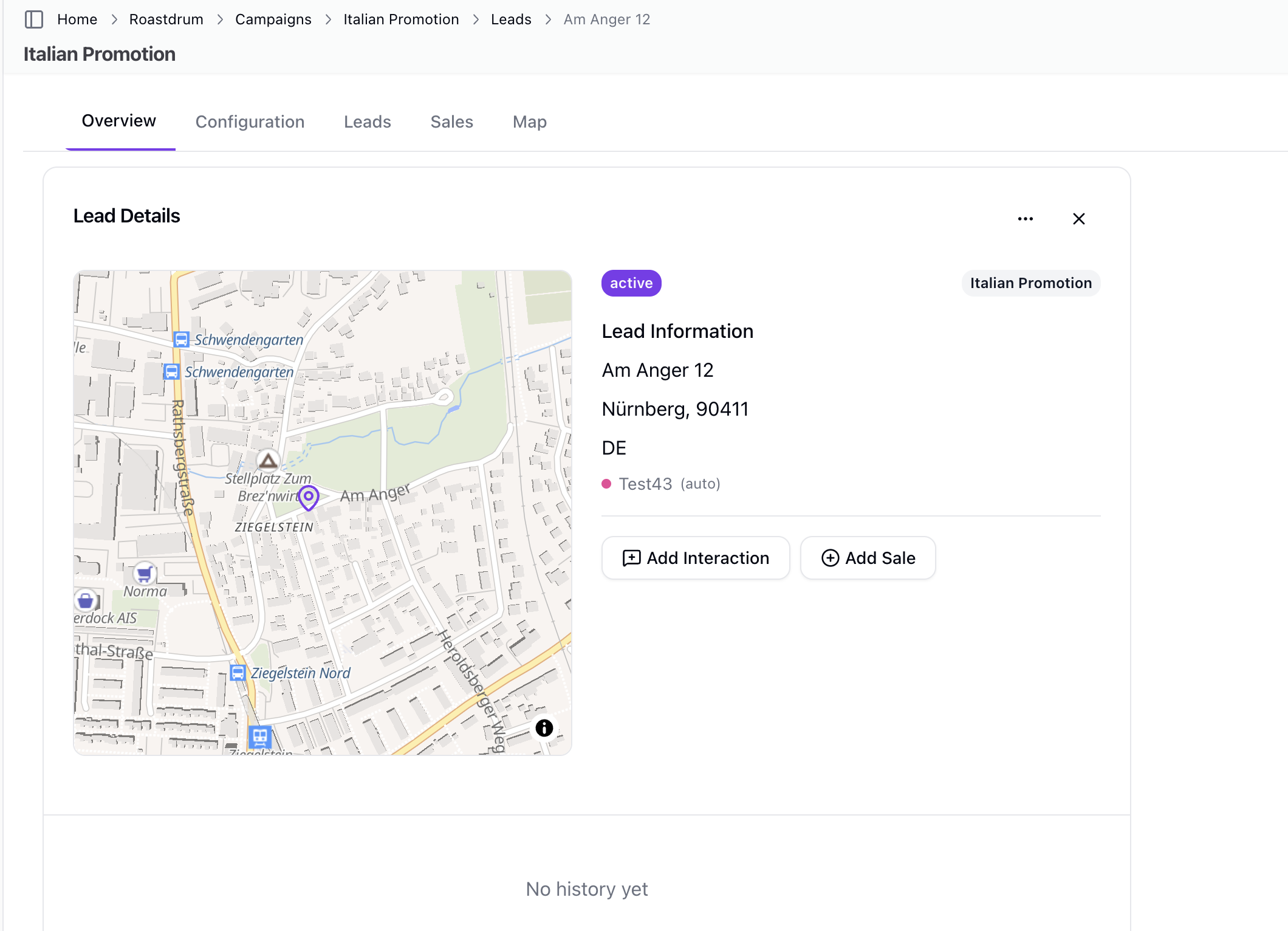
- Open the interaction form
- Click the "Add Interaction" button on the lead detail page
- The interaction dialog will open
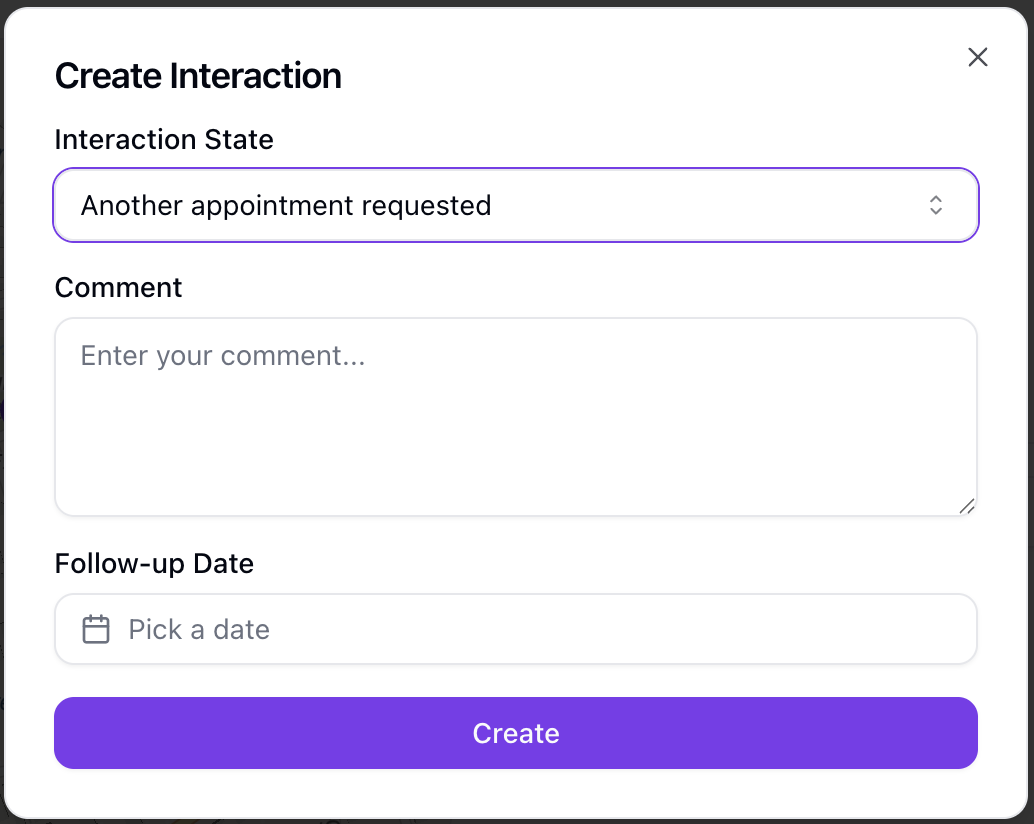
- Select an interaction state
- Choose from the available states for this campaign
- States are configured by your team administrator
- The state you select determines what happens next
- Add notes (optional)
- Enter any relevant details in the comment field
- Notes help provide context for future reference
- Set follow-up date (conditional)
- If the selected state has follow-up enabled, a date picker appears
- Select when you want to follow up
- Includes time selection
- Cannot select dates in the past
- Save
- Submit the interaction
- The interaction is recorded immediately
Interaction Form Fields
| Field | Type | Description |
|---|---|---|
| Interaction State | required | Select from configured states for the campaign |
| Comment | optional | Notes about the interaction |
| Follow-Up Date | conditional & optional | Only appears if the selected state has follow_up: true configured |
| Contact Details | conditional | Only visible when the selected state has Allow Editing Contact enabled. Allows editing the lead's name, address, phone, and email directly in the interaction form. |
Understanding Interaction States
State Properties
Each interaction state can have special behaviors configured:
| Property | Effect |
|---|---|
| follow_up | When true, shows the follow-up date picker |
| keep_open | Determines if the lead remains open for further contact |
| is_email_reply | Marks the state as an email reply type |
| color | Visual indicator in the UI |
How States Work
- States are defined at the account level
- States can be assigned to specific campaigns
- The available states you see depend on your current campaign
- Selecting a state may trigger the follow-up date field to appear
- The selected state controls whether contact details are editable and whether the AI summary is regenerated after saving
Email Interactions
Sellfaster can record email interactions automatically:
- Sending emails from the app
- When you send an email through the platform, it automatically creates an interaction
- The interaction includes the email subject and body reference
- Linked via
email_transaction_idfor threading
- Email interaction states
- Your team may have specific states marked as
is_email_reply - These are used when the system logs email activity
- Your team may have specific states marked as
Adding Notes
What to Include
Good interaction notes capture:
- What was discussed - Topics, questions, concerns
- Who was present - Names if known
- Outcome - Result of the conversation
- Next steps - What happens next
- Context - Anything relevant for future visits
Example Notes
Spoke with Jane about solar panel options.
She's interested but wants to discuss with husband.
Husband works until 6pm. Call back tomorrow evening.
Not home. Car in driveway. Left brochure in door.
Try again this weekend.
Setting Follow-Ups
When Follow-Up Appears
The follow-up date field only appears when:
- The selected interaction state has
follow_up: trueconfigured - This is determined by your team's state configuration
How to Schedule
- Select an interaction state that enables follow-ups
- The date picker appears automatically
- Choose the date and time
- Minimum date is today (cannot backdate)
- Time selection is included
See Follow-Up Reminders for managing your follow-ups.
After Recording
When you save an interaction:
- Interaction is stored - Linked to the lead, campaign, and account
- AI Summary updates - The system may regenerate the lead summary. Note: the AI summary is NOT updated if the lead's current state has Scramble Data enabled.
- History updated - Appears in the lead's interaction history
- Follow-up created - If you set a follow-up date, it appears in your calendar
Best Practices
Recording Interactions
- Record immediately - Don't wait, details fade
- Be specific - Include useful details in notes
- Use correct state - Accurate categorization matters
- Schedule follow-ups - When the state allows and appropriate
Note Quality
- Names when possible - Who did you speak with?
- Specific times - "Call after 5pm" vs "call later"
- Action items - What needs to happen next?
- Context - Why is this important?
Troubleshooting
Can't Record Interaction
If you can't record:
- Check you're signed in
- Verify you have
interactions:createpermission - Ensure the lead is in an active campaign
- Try refreshing the page
Interaction Not Saving
If save fails:
- Check internet connection
- Verify you selected an interaction state (required)
- Check for error messages
- Try again
Follow-Up Date Not Showing
If the follow-up field doesn't appear:
- The selected state may not have follow-up enabled
- Try selecting a different state
- Contact your administrator to check state configuration
Related Topics
- Managing Leads - Lead management
- Follow-Up Reminders - Scheduling follow-ups
- Interaction States - State configuration