This guide shows you how to view commission data and manage payslips for tracking your earnings.
Accessing Commission
Commission Page
Navigate to the commission section:
- Go to your team account
- Navigate to
/home/[team]/commission - View commission and payslips tabs
Commission Page Tabs
The commission page has two main tabs:
Payslips Tab
View and manage payslips (payment records):
- List of all generated payslips
- Search by description
- Date range filtering
- Preview and download options
- Batch download capability
Commission Log Tab
View detailed commission entries:
- All commission records
- Filter by type, status, and date
- See individual commission amounts
Viewing Payslips
Payslips Table
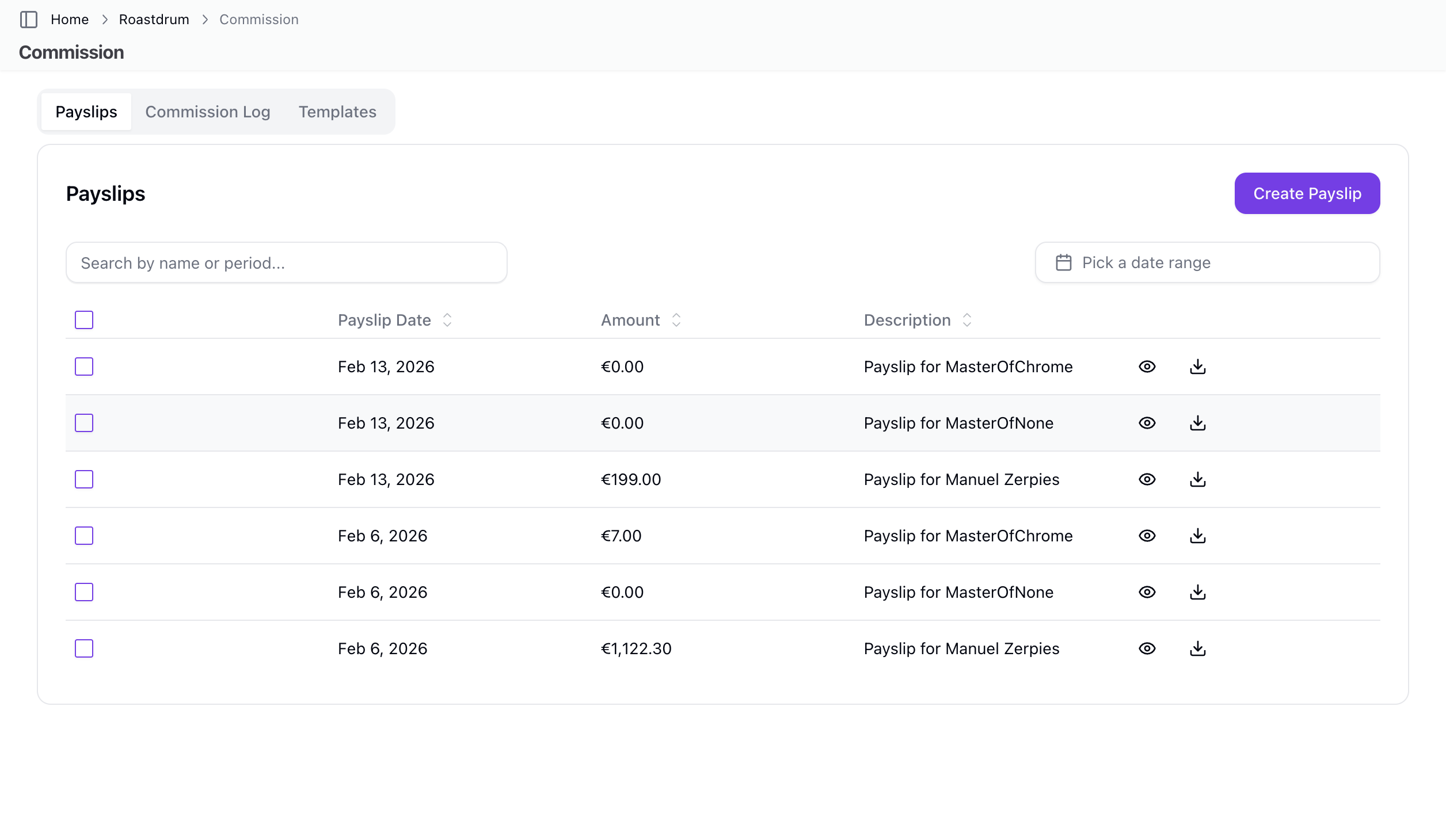
The payslips table shows:
| Column | Description |
|---|---|
| Date | Payslip date |
| Amount | Total payslip amount |
| Description | Content description |
Payslip Actions
| Action | Description |
|---|---|
| Preview | View payslip in modal with PDF iframe |
| Download | Download individual payslip as PDF |
| Batch Download | Download selected payslips as ZIP |
Payslip PDF Content
Each payslip PDF includes:
Header:
- Title
- Employee name
- Payslip date
Commissions Section:
- Table with: Sale Date, Type (Earned/Reclaimed), Amount, Address
- Note for promotion-affected sales
- Commission subtotal
Bonus Targets Section:
- Table with: Bonus target name, description, bonus amount
- Bonus subtotal
Total:
- Sum of commissions and bonuses
Viewing Commission Log
Commission Table
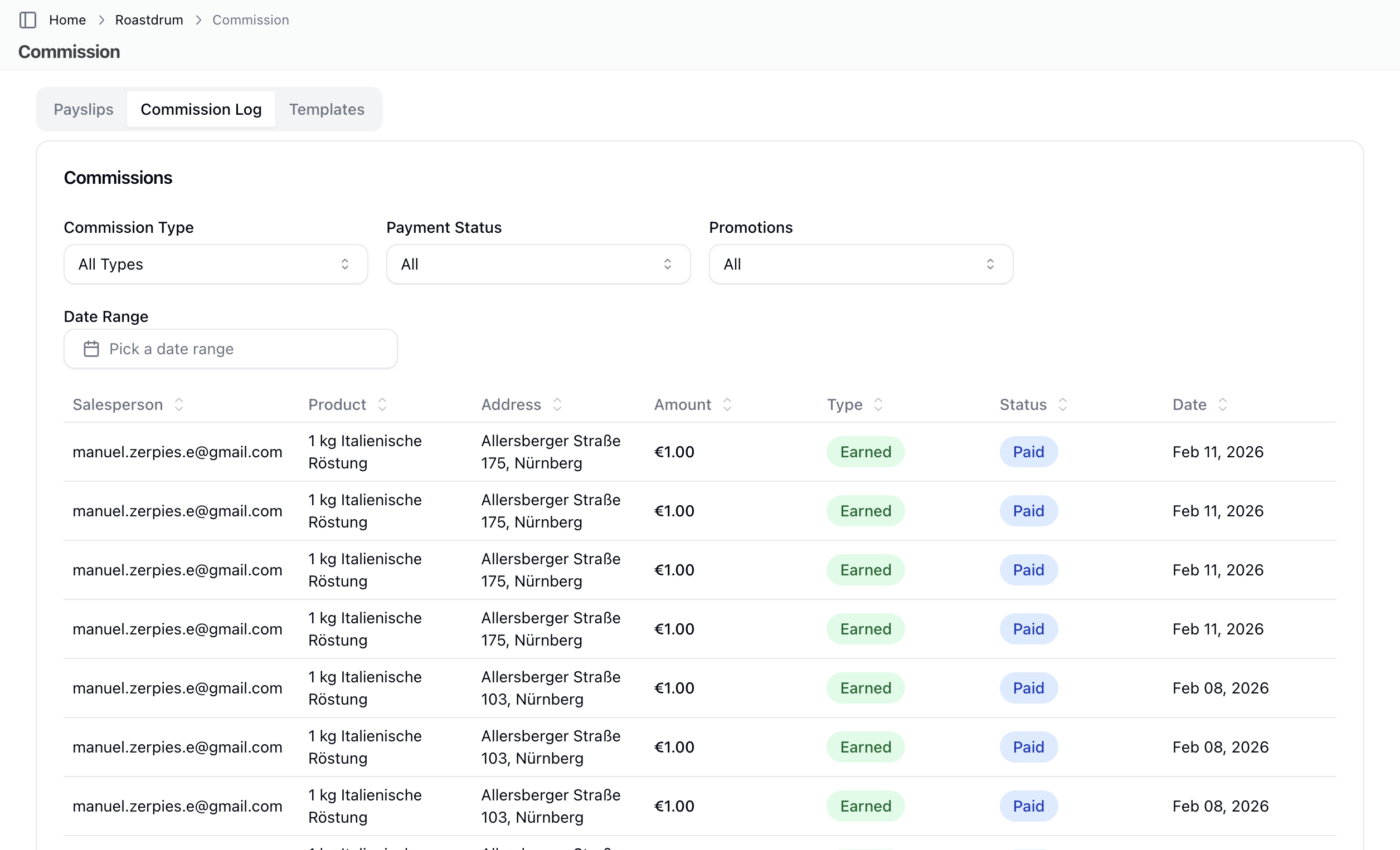
The commission log displays:
| Column | Description |
|---|---|
| Salesperson | Team member who earned it |
| Product | Product sold |
| Address | Customer address |
| Amount | Commission amount |
| Type | Earned or Reclaimed |
| Status | Paid or Pending |
| Date | When commission was created |
Commission Types
| Type | Description |
|---|---|
| Earned | Positive commission from sales |
| Reclaimed | Negative commission (reversed) |
Commission Filters
Filter the commission log by:
| Filter | Options |
|---|---|
| Commission Type | earned, reclaimed, all |
| Payment Status | paid, unpaid, all |
| Promotion Impact | affected, not_affected, all |
| Date Range | Custom from/to dates |
Promotion Indicator
Products affected by promotions show a tag indicator in the table.
Creating Payslips
Prerequisites
To create payslips:
- You need
payslips:createpermission - Active or trialing subscription required
Create Payslip Process
- Click Create Payslip button (if you have permission)
- Select team members (multi-select or "all")
- Set payslip date (cannot be future)
- Submit
What Happens When Creating
- System fetches unpaid commissions for selected user(s)
- Fetches unpaid achieved bonus targets
- Calculates total: commissions + bonuses
- Creates payslip with content arrays
- Marks included commissions as paid
- Marks bonus targets as paid
- Sends notification to team member
Filtering Data
Date Range Filter
Filter both payslips and commissions by date:
- Set start date (from)
- Set end date (to)
- Format: ISO date strings
Pagination
Both tables support pagination:
- Payslips: 10 items per page
- Commissions: 20 items per page
Search
Payslips support search by description (case-insensitive).
Commission Calculation
How Commission Is Generated
Commissions are created automatically:
- On sale state change: When sale enters a state with
triggers_commission: true - On commission reclaim: When sale enters a state with
reclaims_commission: true - On new sale: If initial state triggers commission
Commission Amount
The system uses:
sale.commission_amountif set (includes promotion adjustments)- Otherwise, falls back to
product.commission(base amount)
Tracking
- Each commission links to a sale, user, and optionally a bonus target
- Unique constraint: one commission per sale per type
- Paid commissions link to a payslip
Best Practices
Regular Review
- Check commission log - Verify sales are generating commissions
- Review before payslip - Confirm amounts are correct
- Track paid vs unpaid - Know what's been paid out
Record Keeping
- Download payslips for your records
- Use batch download for multiple payslips
- Keep records for tax purposes
Verification
Before relying on data:
- Verify sale count matches expected
- Check commission rates on products
- Review any promotion adjustments
- Report discrepancies to your administrator
Troubleshooting
Commission Not Showing
If commission is missing:
- Check sale state - must be a commission-triggering state
- Verify product has commission configured
- Check the date range filter
- Verify sale model configuration
Wrong Amount
If amounts seem incorrect:
- Review sale details
- Check product commission rate
- Look for promotion adjustments (
affected_by_promotionflag) - Compare to sale model rules
Can't Create Payslip
If you can't create payslips:
- Verify you have
payslips:createpermission - Check subscription status (must be active or trialing)
- Contact your administrator
Payslip Won't Download
If download fails:
- Try a smaller date range
- Clear browser cache
- Try a different browser
- Check for popup blockers
Related Topics
- Commission - Commission overview
- Sale Models - Commission rules
- Recording Sales - Creating sales
- Team Sales - Sales management