Review activity history and track changes across your team. Audit logs provide transparency and accountability for all team actions.
Accessing Audit Logs
- Ensure you're in your team account
- Click Audit in the sidebar
- The URL is
https://sellfaster.eu/home/[team]/audit
Note: Audit logs are only accessible to team owners.
What is Logged?
Audit logs automatically track INSERT, UPDATE, and DELETE operations on the following tables:
Core Data:
- Projects
- Addresses
- Interactions
- Sales
- Zones
- Zone Members
Support Data:
- Bonus Targets
- Products
- Product Project Assignments
Custom Fields:
- Custom Field Definitions
- Custom Field Templates
- Custom Field Template Fields
- Custom Field Project Assignments
- Custom Field Values
Dashboards:
- Dashboards
- Dashboard Widgets
- Dashboard Permissions
Viewing Audit Logs
Log Table
The audit logs table displays:
| Column | Description |
|---|---|
| Timestamp | When the change occurred (with relative time) |
| User | Who made the change (or "System" for automated actions) |
| Action | Created (green), Updated (gray), or Deleted (red) |
| Category | The table/entity that was changed |
| Description | Human-readable summary of the change |
| Details | Eye icon to view full change details |
Viewing Details
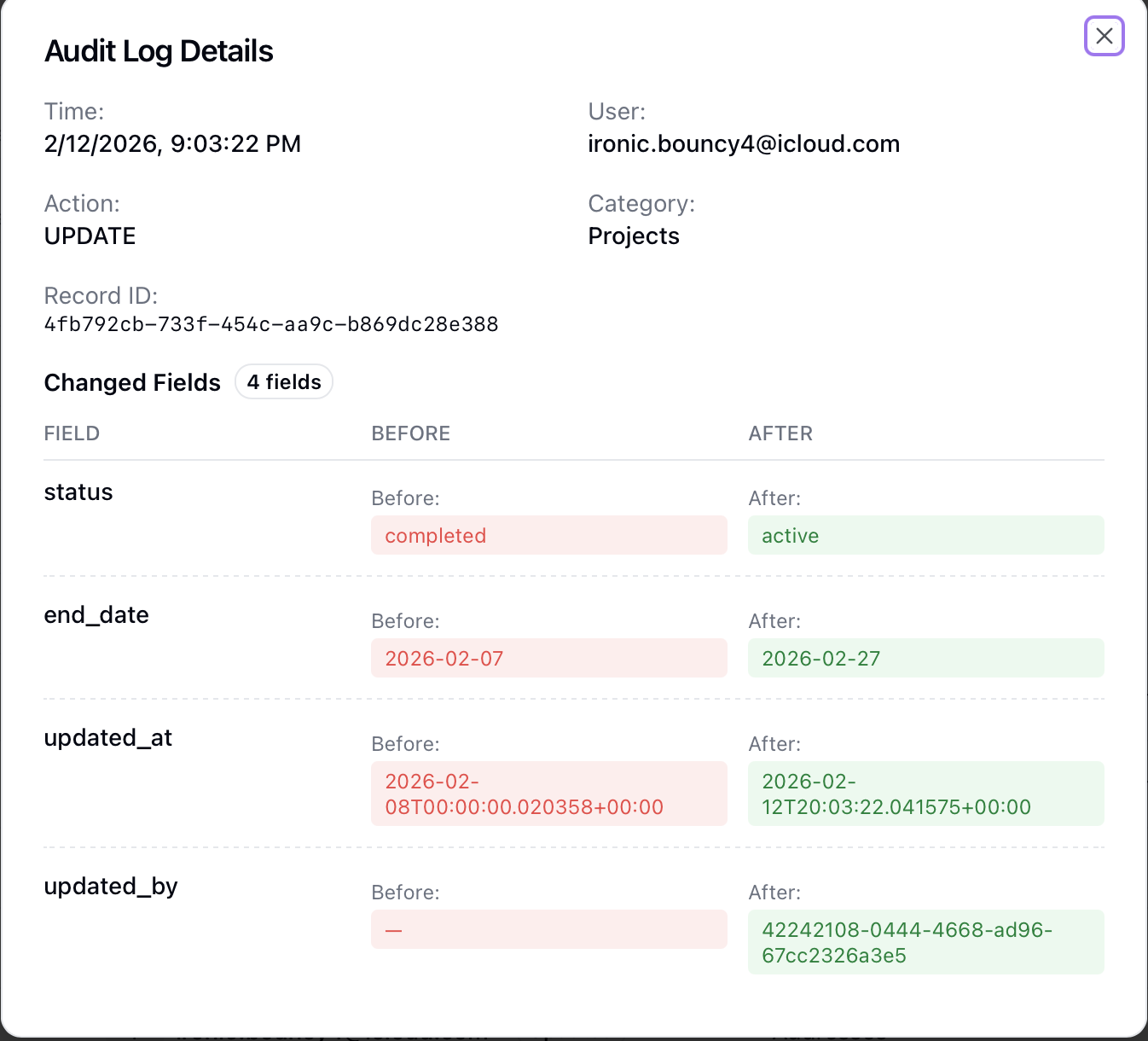
Click the eye icon on any log entry to see:
For Created entries:
- Full JSON of the created record
For Deleted entries:
- Full JSON of the deleted record
For Updated entries:
- Field-by-field comparison showing:
- Field name
- Before value (highlighted in red)
- After value (highlighted in green)
Filtering Logs
Available Filters
| Filter | Description |
|---|---|
| Date Range | Start and end dates |
| User | Filter by specific team member |
| Category | Filter by table name (Projects, Addresses, etc.) |
| Action | Filter by Created, Updated, or Deleted |
Using Filters
- Use the filter dropdowns at the top of the table
- Select filter criteria
- Results update automatically with debouncing
- Click Clear Filters to reset all filters
Filters are reflected in the URL, so you can bookmark or share filtered views.
Pagination
- 20 entries are displayed per page
- Total count is shown in the table footer
- Use pagination controls to navigate through results
Record-Specific History
Throughout the app, you can view audit history for specific records:
- Navigate to any audited entity (project, address, sale, etc.)
- Click the actions menu
- Select View Audit History
- See only changes related to that specific record
This feature appears on:
- Sales detail views
- Projects listing
- Bonus Targets configuration
- Custom Field assignments
Data Retention
Audit logs are retained for 3 years. Older logs are automatically purged to maintain system performance.
Limitations
No Export Feature
The current implementation does not include export functionality. Audit logs are view-only within the browser interface.
Owner-Only Access
Only team owners can access the audit logs page. Other team members, including administrators, cannot view audit logs.
Use Cases
Compliance
Use audit logs for:
- Regulatory compliance requirements
- Internal policy auditing
- Security reviews
Troubleshooting
Investigate issues by:
- Finding when a problem started
- Identifying what changed
- Seeing who made the change
Accountability
Track team activity:
- Who modified important records
- When changes occurred
- What specifically changed
Security
Monitor for:
- Unusual activity patterns
- Unauthorized modifications
- Unexpected deletions
Best Practices
Regular Review
- Periodic checks - Review audit logs regularly for unusual activity
- Investigate anomalies - Follow up on unexpected changes
- Document findings - Note any patterns or concerns
Investigation Process
When investigating an issue:
- Start with the affected entity using record-specific history
- Filter by date range around the incident
- Work backwards through the timeline
- Check related entities for context
- Document your findings
Troubleshooting
Missing Entries
If expected logs don't appear:
- Check your date range filter
- Verify the action type filter
- Some system actions may not trigger audit logs
- Entries older than 3 years are automatically removed
Incomplete Details
If details seem incomplete:
- Some changes may be summarized
- Very old logs may have less detail
- Try viewing the specific record's history instead
Page Loading Slowly
If the audit logs page is slow:
- Narrow your date range
- Apply more specific filters
- Filter by category or user to reduce results
Related Topics
- Team Settings - Configuration changes
- Member Management - Member activities
- Security - Account security