This guide covers how to find leads, sales, and other data using search and filter capabilities.
Search Modes
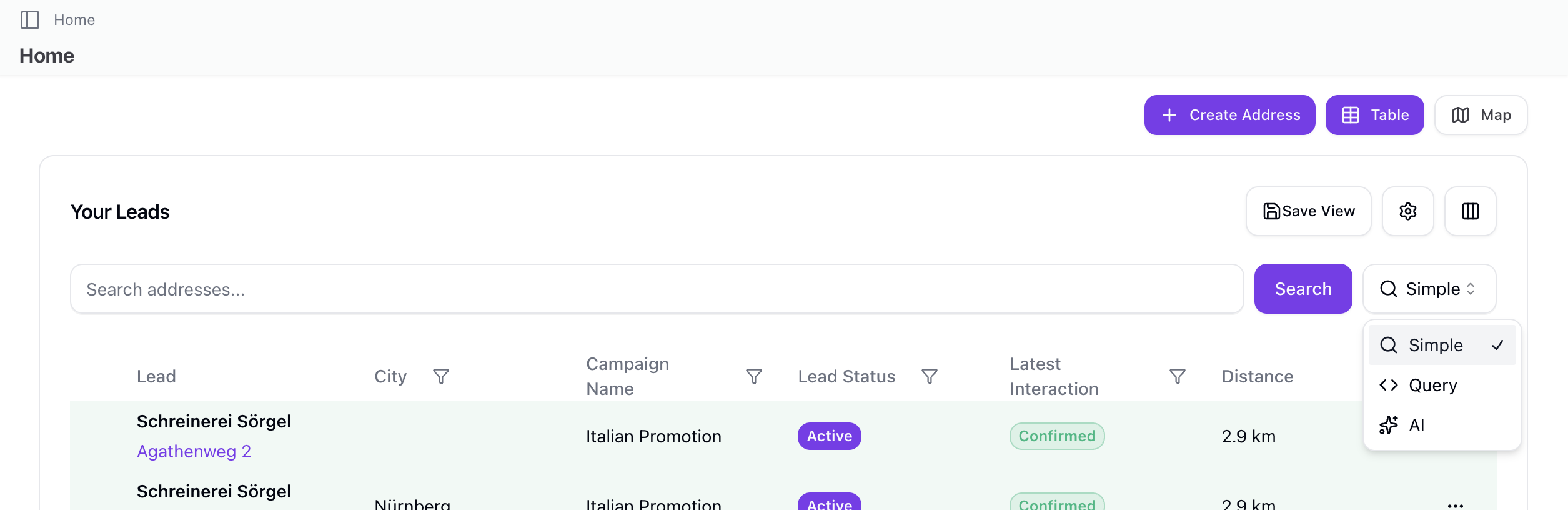
Sellfaster offers three search modes:
| Mode | Description |
|---|---|
| Simple | Basic text search (ILIKE) - default |
| Structured | JQL-like query syntax for precise filtering |
| AI | Natural language search translated to filters |
Switching Search Modes
Use the search mode selector to switch between modes.
Simple Search
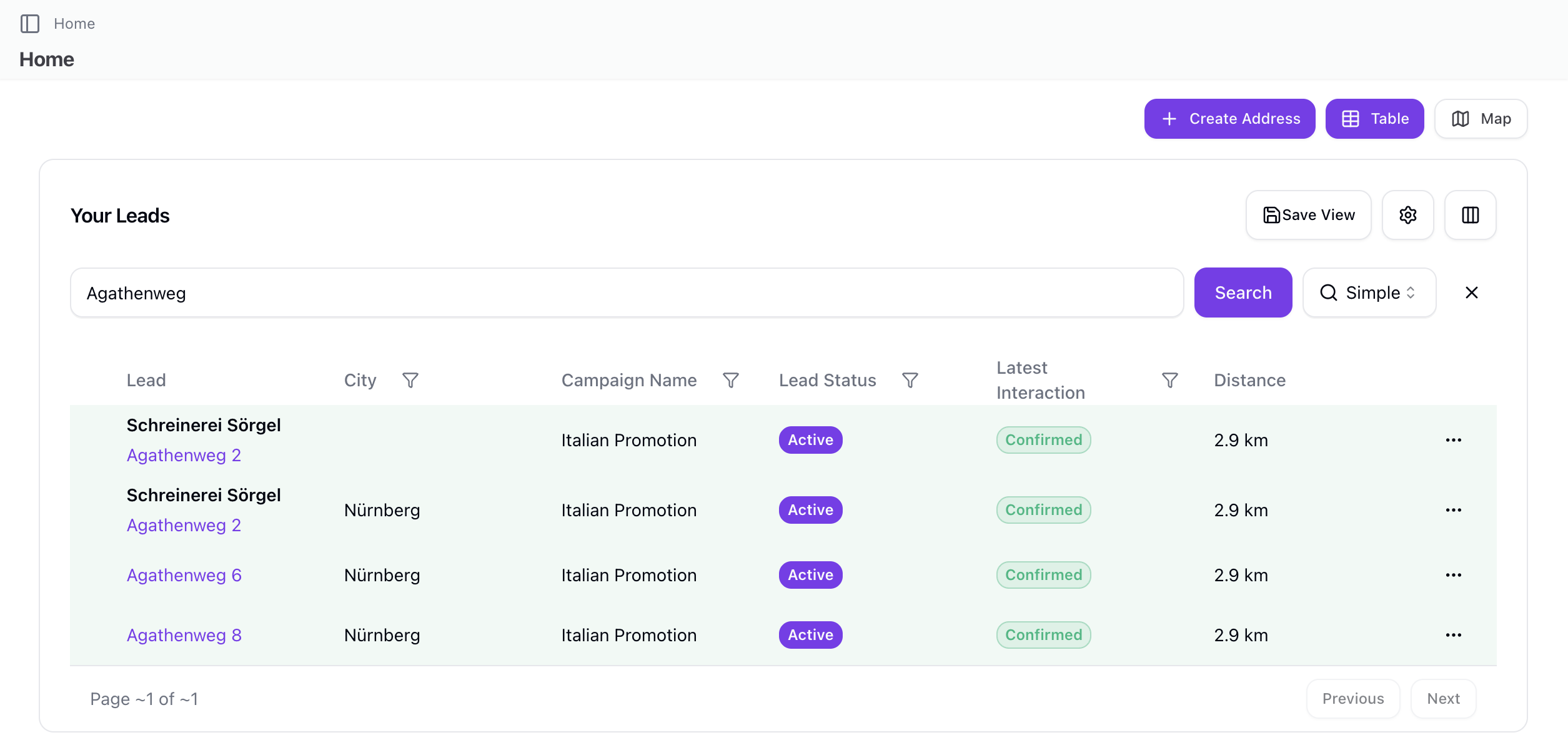
The simplest way to find something:
- Click the search bar
- Type your search term
- Results filter in real-time
What You Can Search
Simple search works across multiple fields depending on the data type:
| Data Type | Searchable Fields |
|---|---|
| Leads | Street, city, contact name |
| Sales | Customer name, notes |
| Products | Name |
| Members | Name, email |
Structured Query Search
For precise filtering, use structured query syntax (JQL-like):
Query Format
Field OPERATOR "Value" [AND|OR] Field OPERATOR "Value"
Available Fields
| Field | Description |
|---|---|
| city | City name |
| street | Street address |
| campaign | Campaign name |
| status | Lead status |
| name | Contact name |
| latest_state | Latest interaction state |
| cf:field_key | Custom field (prefix with cf:) |
Operators
| Operator | Meaning | Example |
|---|---|---|
| = | Exact match (case-insensitive) | city = "Berlin" |
| != | Not equal | status != "inactive" |
| ~ | Contains (ILIKE) | city ~ "Ber" |
| !~ | Does not contain | street !~ "Main" |
| > | Greater than | cf:age > "30" |
| < | Less than | cf:score < "50" |
Conjunctions
Combine conditions with AND or OR:
city = "Berlin" AND project = "Test"
status = "active" OR status = "pending"
Note: You cannot mix AND and OR in a single query.
Custom Fields
Filter by custom fields using the cf: prefix:
cf:phone ~ "+49"
cf:property_type = "Single Family"
Examples
city = "Berlin"
city ~ "Ber" AND project = "Downtown"
latest_state ~ "Interested"
cf:roof_age > "10"
AI Search
Natural language search using AI:
- Switch to AI mode
- Type your query in plain language
- AI translates to structured filters
- Results display automatically
Features
- Uses Mistral API for translation
- 15-minute session-scoped caching
- Graceful fallback to simple search on failure
- 10-second timeout for API requests
Example Queries
- "Show me leads in Berlin that are interested"
- "Find all active contacts in the Downtown campaign"
Filter Panel
Accessing Filters
- Look for the Filter button
- Click to open filter panel
- Configure your criteria
Lead Filters
| Filter | Description |
|---|---|
| City | Filter by city |
| Campaign | Filter by campaign name |
| Lead Status | Filter by active/inactive |
| Latest State | Filter by interaction state |
| Custom Fields | Filter by custom field values |
Sales Filters
| Filter | Description |
|---|---|
| Date Range | Sale date (start/end) |
| Status | Sale state |
| Product | Products sold |
| Campaign | Associated campaign |
| Salesperson | Who made the sale |
Column Filters
Individual column filtering:
- Click filter icon on column header
- Select values to include
- Clear individual filters with X button

Mobile Filters
On mobile devices:
- Three key filters: City, Campaign, Latest State
- Responsive filter panel
- X button to clear individual filters
Saved Views
Creating a Saved View
If supported:
- Configure your filters
- Click Save View
- Name the view
- Use later with one click
Saved View Contents
Views save:
- City filter
- Campaign name filter
- Lead status filter
- Latest state filter
- Sort preference (lead or distance)
- Search text and mode
- Structured query filters
- Custom field filters
- Column visibility settings
- Page size
Managing Views
- Reorder views via drag-and-drop
- Delete views you no longer need
- Exit saved view to return to default
Clearing Filters
Reset All
Clear all filters at once:
- Click Reset or Clear Filters
- All filters removed
- Full list displays
Clear Individual
Remove one filter:
- Click the X on the filter chip
- Or uncheck the option
- Other filters remain
Exporting Filtered Results
CSV Export
Export filtered leads to CSV:
- Apply your filters
- Click Export
- Only matching items exported
- CSV includes UTF-8 BOM for Excel compatibility
Exported Fields
| Field | Description |
|---|---|
| Street Address | Full street lead |
| Name | Contact name |
| City | City |
| State | State/province |
| Postal Code | ZIP/postal code |
| Country | Country |
| Zone | Assigned zone |
| Status | Active/inactive |
| Verified | Yes/No |
Search Tips
Effective Searching
- Start broad - Use simple terms first
- Refine gradually - Add filters as needed
- Check spelling - Typos affect results
- Use structured queries - For precise filtering
Performance
- Filters are applied server-side for efficiency
- Pagination reduces data load
- Saved views cache filter configurations
Common Search Scenarios
Finding Leads to Visit
Goal: Find new leads in your area
- Filter Latest State = "New" or specific states
- Filter by Campaign or City
- Result: Your work list
Finding Hot Leads
Goal: Find interested prospects
- Filter Latest State = "Interested"
- Optionally filter by recent date
- Result: Active opportunities
Finding by Custom Field
Goal: Find leads with specific attributes
- Use structured query:
cf:property_type = "Commercial" - Or combine:
city = "Berlin" AND cf:size > "1000" - Result: Filtered list
Table Controls
Column Visibility
Toggle which columns display:
- Click Columns menu
- Check/uncheck columns to show
- Custom field columns available
Show/Hide Units
For buildings with multiple units:
- Toggle units display on/off
Sorting
Sort options:
- By lead (alphabetical)
- By distance (requires location access)
Page Size
Control items per page:
- Options: 10-100 items
Troubleshooting
No Results Found
If search returns nothing:
- Check spelling
- Broaden filters
- Clear all filters to verify data exists
- Try different search terms
- Check search mode (simple vs structured)
Too Many Results
If results are overwhelming:
- Add more filters
- Use more specific search terms
- Use structured query for precision
Structured Query Errors
If query has errors:
- Check syntax (Field OPERATOR "Value")
- Verify field name is valid
- Quote values properly
- Don't mix AND/OR
AI Search Not Working
If AI search fails:
- System falls back to simple search automatically
- Try structured query instead
- Check network connection
Related Topics
- Dashboard - Filtering on dashboard
- Campaign Leads - Campaign filtering
- Custom Fields - Field configuration