Forgot your password? This guide shows you how to reset it and regain access to your account.
Requesting a Password Reset
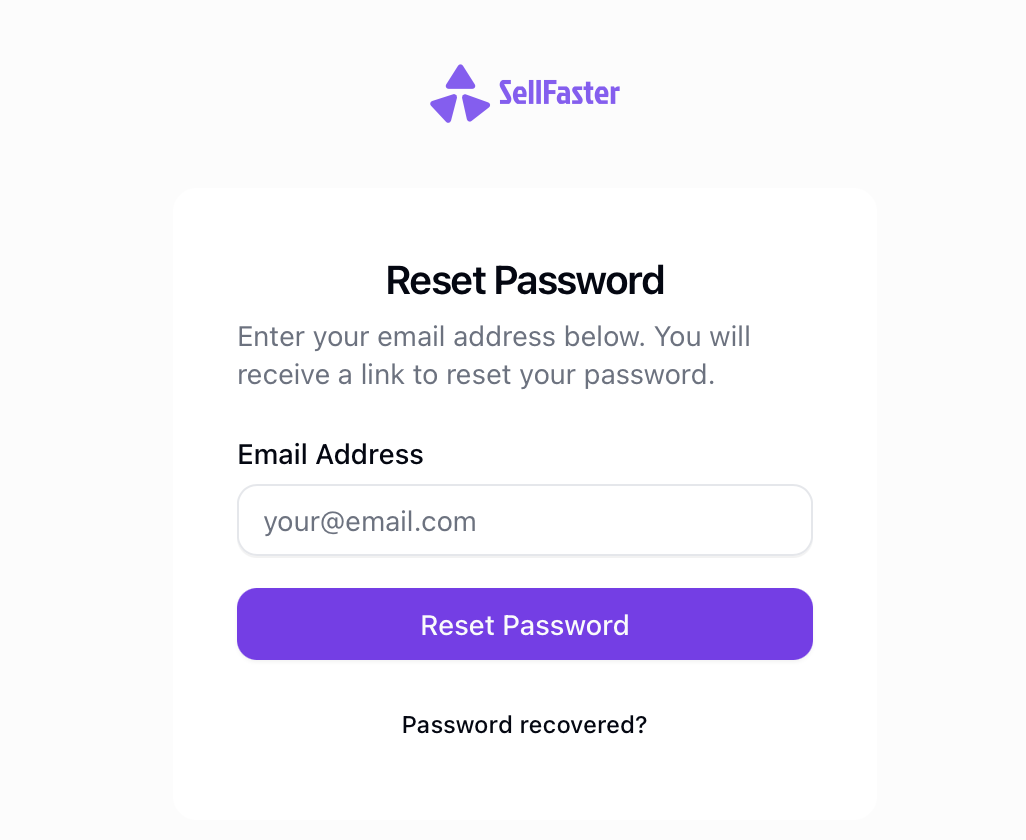
- Navigate to the sign-in page at
https://sellfaster.eu/auth/sign-in - Click Forgot password?
- Enter your registered email address
- Click Send Reset Link
Checking Your Email
After requesting a reset:
- Check your email inbox for the reset message
- The email will be from your organization's Sellfaster address
- Click the Reset Password button or link in the email
Note: The reset link expires after a limited time (typically 1 hour) for security reasons.
Setting a New Password
- Click the reset link in your email
- You'll be taken to the password update page at
https://sellfaster.eu/update-password - Enter your new password
- Confirm the new password
- Click Update Password
Password Requirements
Your new password must meet these requirements:
- Minimum 8 characters
- At least one uppercase letter
- At least one lowercase letter
- At least one number
- Special characters recommended for stronger security
After Resetting
Once your password is updated:
- You'll be signed in automatically
- Your previous sessions on other devices will be invalidated
- Use your new password for future sign-ins
Troubleshooting
Didn't Receive the Email
If you don't receive the password reset email:
- Check spam/junk folder - The email may have been filtered
- Verify the email address - Ensure you entered the correct email
- Wait a few minutes - Email delivery can sometimes be delayed
- Request again - Try requesting another reset link
Reset Link Expired
If you see "Link expired" message:
- Return to the sign-in page
- Request a new password reset
- Use the new link promptly
Link Already Used
Each reset link can only be used once. If you see "Link already used":
- Try signing in with your new password
- Request a new reset link if needed
Email Not Registered
If the system says your email isn't registered:
- Check for typos in the email address
- Try a different email if you have multiple accounts
- You may need to create a new account
Account Uses OAuth Only
If you signed up with Google (OAuth):
- Password reset doesn't apply - you don't have a password
- Sign in with Continue with Google instead
- To add password login, see Security Settings
Security Best Practices
When creating a new password:
- Don't reuse passwords - Use a unique password for Sellfaster
- Use a password manager - Tools like 1Password, LastPass, or Bitwarden help create and store strong passwords
- Enable MFA - Add an extra layer of security with multi-factor authentication
- Don't share your password - Never share your credentials with others
Getting Help
If you're still unable to reset your password:
- Contact your team administrator
- Reach out to support with your account email
- Provide any relevant error messages
Related Topics
- Signing In - Authentication options
- Security Settings - Manage your security
- Setting Up MFA - Enable two-factor authentication