This guide shows you how to create and manage follow-up reminders to ensure you never miss an important callback or visit.
What are Follow-Ups?
Follow-ups are scheduled reminders attached to interactions. They help you:
- Remember to call back a prospect
- Return to a lead at a specific time
- Track pending tasks for lead
How Follow-Ups Are Created
Follow-ups are created as part of recording an interaction. You cannot create a standalone follow-up - it must be associated with an interaction.
Creating a Follow-Up
- Record an interaction
- Navigate to a lead
- Open the interaction form
- Select an appropriate state
- Choose an interaction state that has follow-up enabled
- The follow-up date field only appears for states with
follow_up: true
- Set the follow-up date and time
- Date picker appears automatically for follow-up-enabled states
- Select the date for your follow-up
- Time selection is included
- Cannot select dates in the past (minimum is today)
- Add notes
- Include context in the interaction comment
- This helps you remember what to do when following up
- Save the interaction
- The follow-up is created along with the interaction
Viewing Your Follow-Ups
Personal Follow-Ups Page
View all your scheduled follow-ups:
- Navigate to
/home/follow-ups - See a list of all your upcoming follow-ups
- Features include:
- Search across lead, city, campaign name, and comment
- Sort by date (default) or distance from your location
- Overdue follow-ups are highlighted
- Pagination support
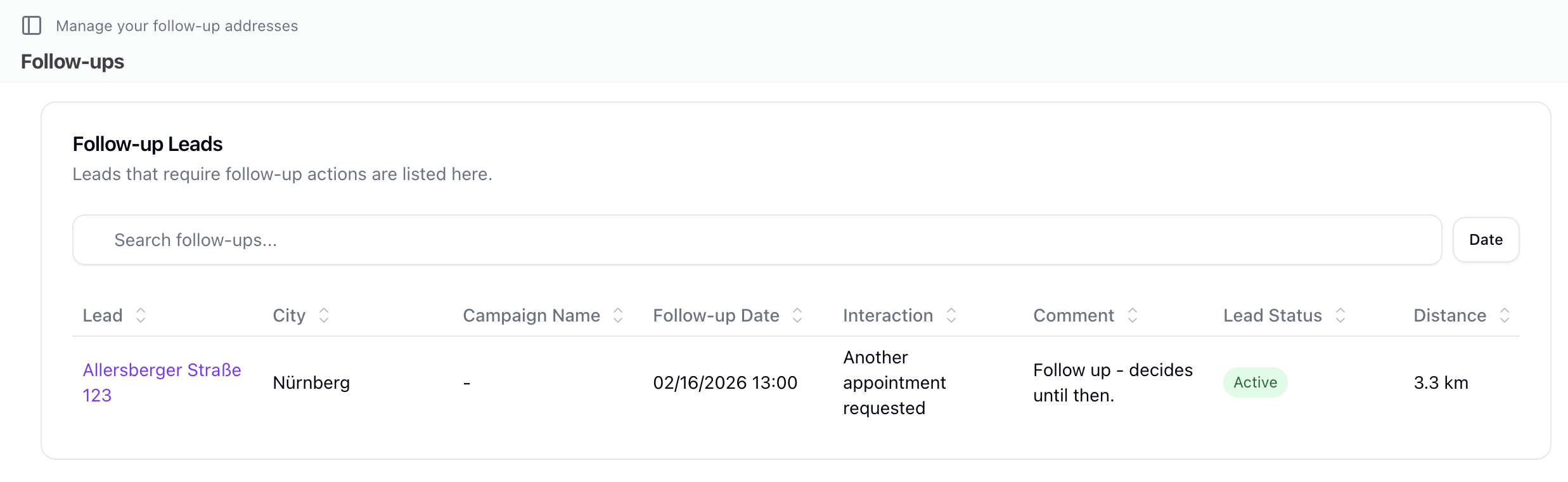
Follow-Up Table Columns
The follow-ups list shows:
| Column | Description |
|---|---|
| Lead | Street lead and location |
| City | City of the lead |
| Campaign | Associated campaign |
| Follow-Up Date | Scheduled date and time |
| Comment | Notes from the interaction |
| State | Interaction state name |
Mobile View
On mobile devices:
- Follow-ups display as swipeable cards
- Overdue items show with a red border indicator
- Quick actions available via swipe gestures
- Distance calculation from your current location
Calendar View
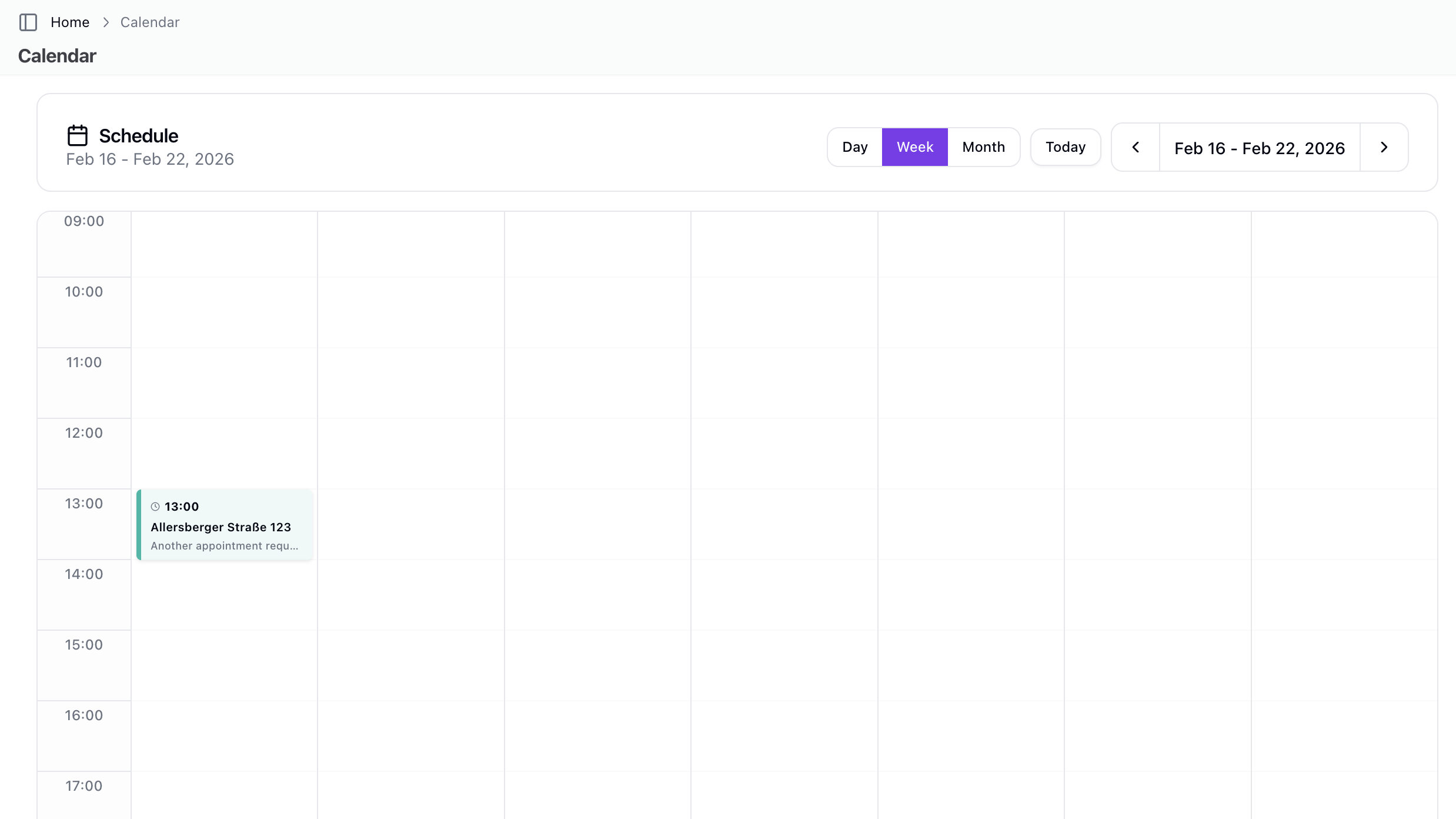
Follow-ups appear in the calendar:
Personal Calendar
- Navigate to
/home/calendar - View follow-ups in a weekly schedule
- Calendar shows 6 AM to 10 PM hours
- Events are color-coded by campaign
- Click an event to navigate to the lead
Team Calendar
- Navigate to
/home/[team]/calendar - See team follow-ups
Calendar Features
- Week view display
- Events show 1-hour default duration
- Hover to see lead details in tooltip
- Click to navigate to lead detail page
Managing Follow-Ups
Completing a Follow-Up
When you've made contact:
- Go to the lead
- Record a new interaction
- The new interaction updates the follow-up status
- Previous follow-up is considered addressed
Taking Action on Follow-Ups
From the follow-ups list, you can:
| Action | Description |
|---|---|
| Add Interaction | Record a new interaction for the lead |
| Add Sale | Record a sale for the lead |
| View Lead | Navigate to full lead details |
Overdue Follow-Ups
Follow-ups become overdue when the scheduled date/time passes:
- Displayed with visual indicator (red border on mobile)
- Still appear in your list until addressed
- Sort by date to see overdue items first
Follow-Up Data
Each follow-up includes:
| Field | Description |
|---|---|
| follow_up_date | Scheduled date and time |
| comment | Notes from the interaction |
| lead | Full lead details |
| campaign | Campaign information |
| interaction_state | State name and properties |
| zone | Zone assignment if applicable |
Best Practices
Scheduling
- Be realistic - Schedule times you can actually follow through
- Use specific times - When the customer gave a callback time
- Consider time zones - Schedule appropriately for the customer
- Don't overload - Space out follow-ups throughout the day
Organization
- Morning review - Check today's follow-ups each morning
- Lead overdue items - Handle old follow-ups promptly
- Update after contact - Record new interactions to mark progress
Notes Quality
Include helpful context:
- Why you're following up
- What was discussed previously
- What you need to bring or prepare
- Customer preferences or concerns
Notifications
Current Behavior
Follow-ups appear in:
- The follow-ups list page
- Calendar views (personal and team)
- Lead detail pages
Note on Push Notifications
The system currently manages follow-ups through the UI (tables and calendar views). Automated email or push notifications for approaching follow-up dates are not currently implemented.
Troubleshooting
Follow-Up Date Not Appearing
If the follow-up date field doesn't show:
- Check the interaction state you selected
- Not all states have follow-up enabled
- Try selecting a different state
- Contact your administrator to verify state configuration
Follow-Up Not Showing in List
If a follow-up isn't visible:
- Check the date - it may have already passed
- Verify you have access to the campaign
- Check filters aren't hiding it
- Refresh the page
Can't Edit Follow-Up
To change a follow-up:
- Record a new interaction on the lead
- Set the new follow-up date
- The latest interaction's follow-up takes precedence
Related Topics
- Follow-Ups - Follow-up management overview
- Recording Interactions - Creating interactions
- Calendar - Calendar view
- Interaction States - State configuration