Track commissions and manage payslips for your team. The commission page provides visibility into earned commissions and tools for generating payslips.
Accessing Commission
- Ensure you're in your team account
- Click Commission in the sidebar
- The URL is
/home/[team]/commission
Commission Page Tabs
The commission page has two tabs:
Payslips Tab
View and create payslips for team members.
Commission Log Tab
View the detailed log of all commission entries.
Templates
Upload and use templates to create your payslips with.
Payslips
What is a Payslip?
A payslip is a record summarizing commissions owed to a team member for a specific period. Payslips are created manually by team managers.
Viewing Payslips
The payslips table shows:
| Column | Description |
|---|---|
| Date | Payslip date |
| User | Team member |
| Amount | Total payslip amount |
| Created | When the payslip was created |
Filtering Payslips
Filter payslips by:
- Search - Search by content
- Date Range - Filter by payslip date
Creating a Payslip
- Click Create Payslip
- Select the team member
- Create the payslip
Exporting Payslips to PDF
- Click on a payslip to view details
- Click Export PDF
- The payslip downloads as a formatted PDF document
Payslip Templates
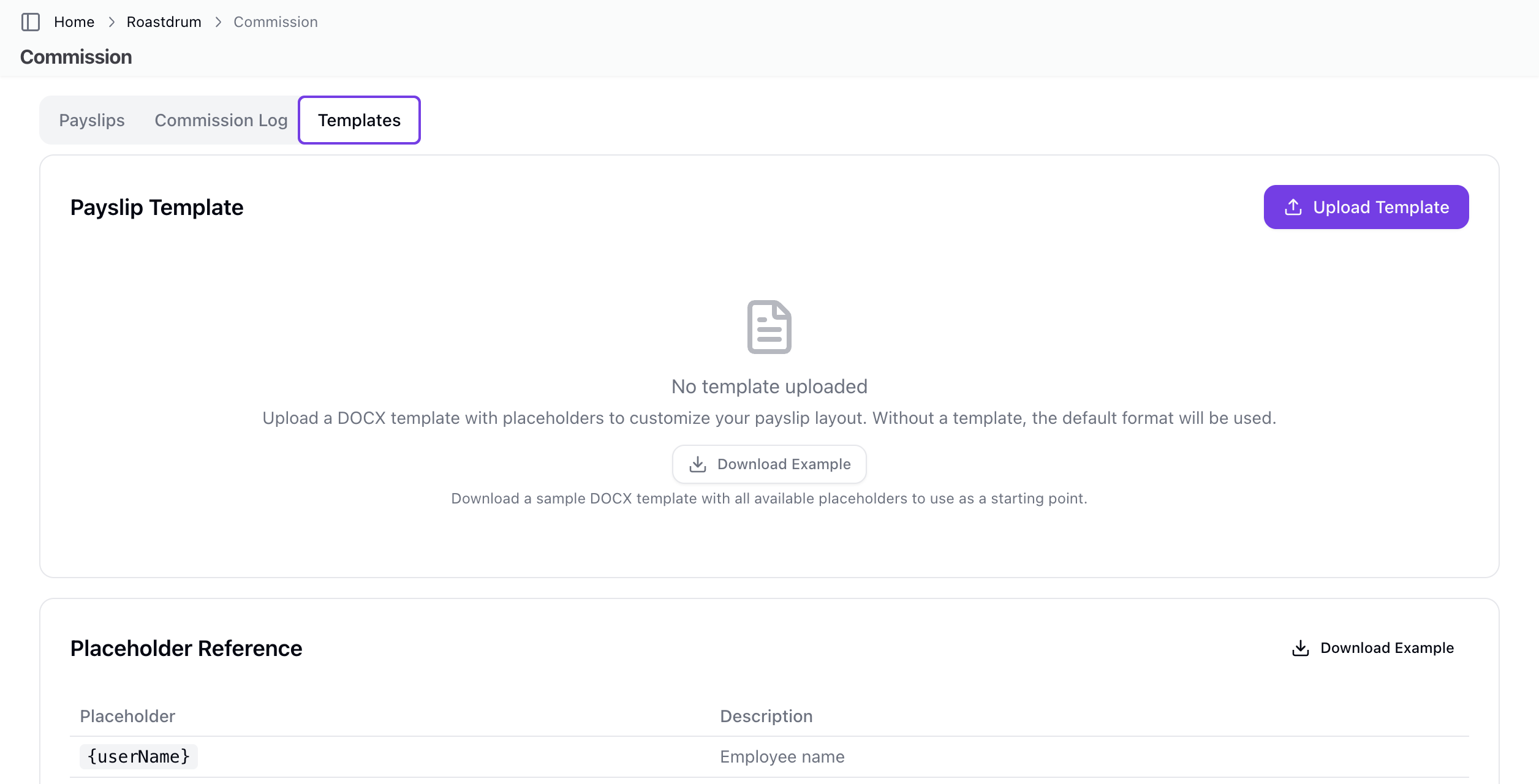
What are Payslip Templates?
Payslip templates are Word (.docx) files with placeholders that are used to generate formatted payslips. Upload a template to customize the layout and content of exported payslips.
Accessing Templates
- Navigate to the Commission page
- Click the Templates tab
Uploading a Template
- Click Upload Template
- Select a
.docxfile (maximum 5 MB) - The template is validated and activated
Only one active template can exist at a time. Uploading a new template replaces the previous one.
Template Placeholders
Use the following placeholders in your .docx template:
Simple Tags
| Placeholder | Description |
|---|---|
{userName} | Name of the team member |
{payslipDate} | Date of the payslip |
{accountName} | Team account name |
{commissionsTotal} | Total commission amount |
{bonusTotal} | Total bonus amount |
{grandTotal} | Grand total (commissions + bonuses) |
Commission Loop
Use {#commissions}...{/commissions} to repeat a row or section for each commission entry:
| Placeholder | Description |
|---|---|
{saleDate} | Date of the sale |
{amount} | Commission amount |
{commissionType} | Earned or Reclaimed |
{address} | Address of the sale |
{promotionNote} | Promotion details (if applicable) |
Bonus Loop
Use {#bonusTargets}...{/bonusTargets} to repeat a row or section for each bonus:
| Placeholder | Description |
|---|---|
{targetName} | Name of the bonus target |
{description} | Bonus target description |
{bonusAmount} | Bonus amount earned |
Required Placeholders
The following placeholders must be present in every template:
{userName}{payslipDate}{grandTotal}
Templates missing these placeholders will fail validation.
Example Template
A downloadable example template is available from the Templates tab. Use it as a starting point and customize it to match your payslip layout.
Managing Templates
- View — See the active template name, upload date, and file size
- Replace — Upload a new template to replace the current one
- Delete — Remove the active template
Validation
Templates are validated on upload. The system checks for:
- Valid
.docxformat - Recognized placeholders
- Required placeholders present
Unknown placeholders are flagged as warnings so you can correct them before generating payslips.
Commission Log
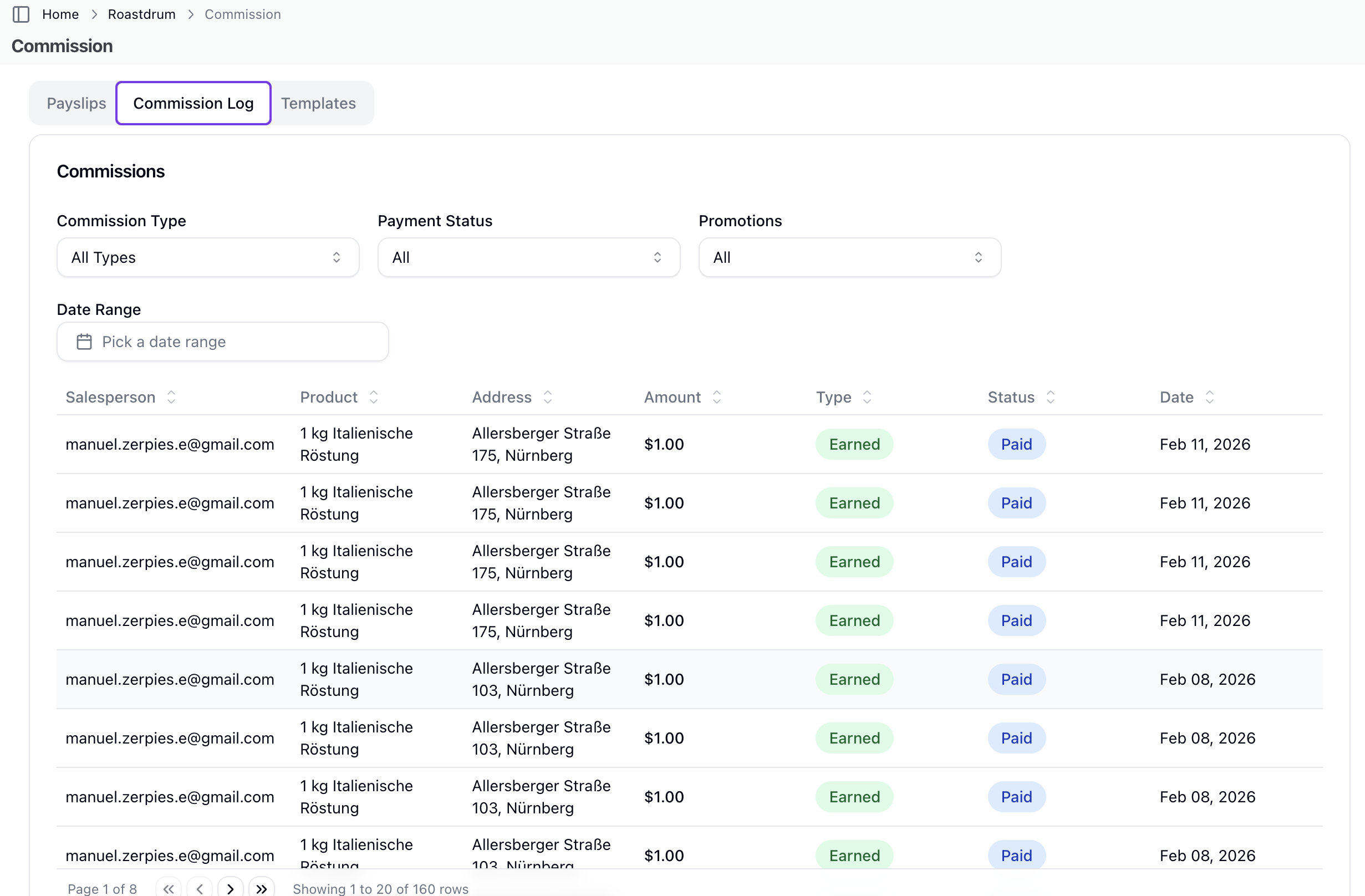
What is the Commission Log?
The commission log shows individual commission entries, both earned and reclaimed. Each commission is linked to a specific sale.
Commission Entry Information
| Field | Description |
|---|---|
| Date | When the commission was recorded |
| Sale | The related sale |
| Product | Product sold |
| Address | Sale location |
| Amount | Commission amount |
| Type | Earned or Reclaimed |
| Paid Status | Whether included in a payslip |
| Promotion Affected | Whether affected by a promotion |
Commission Types
| Type | Description |
|---|---|
| Earned | Standard commission from a completed sale |
| Reclaimed | Commission reversed (e.g., canceled sale) |
Filtering Commissions
Filter the commission log by:
| Filter | Options |
|---|---|
| Commission Type | Earned, Reclaimed, All |
| Paid Status | Paid, Unpaid, All |
| Promotion | Affected, Not Affected, All |
| Date Range | Custom date range |
How Commission Works
Commission Calculation
Commissions are calculated based on:
- Product commission rates (set in inventory)
- Sale model rules
- Sale completion status
When Commission is Created
Commission entries are created automatically when:
- A sale reaches a completed status
- The sale has a product with a commission rate
Commission and Payslips
- Commissions start as "unpaid"
- When included in a payslip, they become "paid"
- The payslip records the payment
Promotions and Commission
Sales can be affected by promotions, which may modify commission amounts. The commission log tracks whether each entry was affected by a promotion.
Best Practices
For Team Managers
- Regular payslips - Create payslips on a consistent schedule
- Review before paying - Verify commission amounts
- Use filters - Focus on unpaid commissions when creating payslips
- Export records - Keep PDF records for accounting
For Team Members
- Review your commissions - Check the commission log regularly
- Verify accuracy - Report any discrepancies
- Track promotions - Understand how promotions affect your earnings
Troubleshooting
Commission Not Appearing
If a commission doesn't appear:
- Verify the sale status is complete
- Check that the product has a commission rate set
- Verify the sale is linked to the correct user
- Check the date filter range
Wrong Commission Amount
If commission seems incorrect:
- Review the product commission rate in inventory
- Check if a promotion affected the sale
- Verify the sale amount was recorded correctly
- Review the sale model rules
Payslip Issues
If you can't create a payslip:
- Verify you have the appropriate permissions
- Ensure you've selected a team member
- Check that the amount is valid
Related Topics
- Sales - Sales that generate commissions
- Inventory - Product commission rates
- Sale Models - Commission workflows
- Bonus Targets - Goals and bonuses