The team calendar displays scheduled follow-ups from interactions, helping you coordinate visits and track upcoming tasks across the team.
Accessing Team Calendar
- Ensure you're in your team account
- Click Calendar in the sidebar
- The URL is
/home/[team]/calendar
What the Calendar Shows
The team calendar is a Follow-Up Calendar that displays:
- Follow-ups scheduled from interactions on addresses
- All follow-ups across the team (not just your own)
- Future follow-ups only (past follow-ups are not shown)
Note: This is not a general-purpose calendar for creating arbitrary events. Follow-ups are created when recording interactions on addresses.
Calendar View
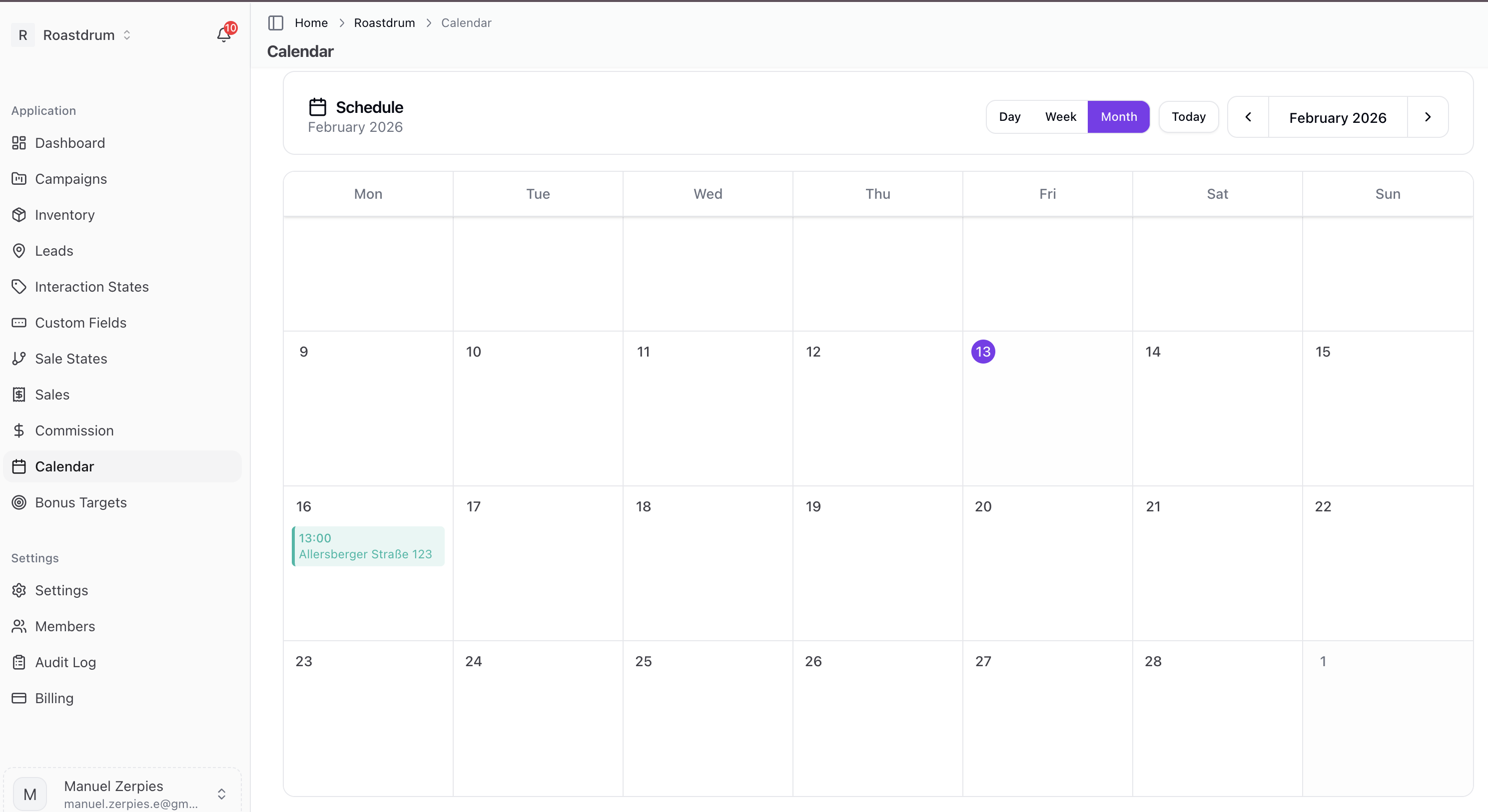
Week View
The calendar displays a weekly schedule:
- Time slots from 6 AM to 10 PM
- Weeks start on Monday
- Each follow-up is shown as an event block
Event Display
Each follow-up event shows:
- Street address (with unit if applicable)
- Interaction state as subtitle
- Project color for visual grouping
Event Details
Hovering Over Events
Hover over an event to see a tooltip with:
- Project name
- Zone name (if assigned)
- Full address details
- Address type
- Address status
Clicking Events
Click an event to navigate directly to the address detail page where you can:
- View the full address information
- Record a new interaction
- Update the address state
- Schedule a new follow-up
How Follow-Ups Appear
Follow-ups are created when:
- Recording an interaction on an address
- Setting a follow-up date on that interaction
- The follow-up automatically appears on the calendar
Follow-Up Duration
All follow-ups display as 1-hour blocks on the calendar starting at their scheduled time.
Filtering
The calendar shows all follow-ups for the account. Events are color-coded by project to help distinguish between different projects visually.
Project Colors
Projects are automatically assigned consistent colors:
- Each project gets a unique color
- Colors are consistent across sessions
- Makes it easy to identify which follow-ups belong to which project
Navigation
Moving Between Weeks
Use the calendar controls to:
- Navigate to previous/next week
- Return to the current week
Viewing Specific Dates
The calendar is centered on the current date by default but can be navigated to view past or future weeks.
Creating Follow-Ups
To add a follow-up to the calendar:
- Navigate to an address detail page
- Record an interaction
- Set a follow-up date and time during the interaction
- Save the interaction
- The follow-up appears on the calendar
See Recording Interactions for detailed instructions.
Best Practices
Managing Follow-Ups
- Check daily - Review upcoming follow-ups each day
- Complete promptly - Address follow-ups on their scheduled date
- Update status - After completing a follow-up, record the interaction to update the address state
- Reschedule when needed - If you can't complete a follow-up, record an interaction and set a new follow-up date
Team Coordination
- Review team schedule - See what follow-ups are scheduled across the team
- Avoid conflicts - Check the calendar before scheduling follow-ups in the same area
- Coordinate coverage - Ensure follow-ups are distributed appropriately
Troubleshooting
Follow-Ups Not Showing
If follow-ups don't appear on the calendar:
- Verify the follow-up date was set when recording the interaction
- Check that the follow-up is in the future (past follow-ups don't display)
- Refresh the page
- Verify you're in the correct team account
Wrong Times Displayed
If times seem incorrect:
- Check your browser's timezone settings
- Verify the follow-up time was set correctly when recording the interaction
Subscribing to the Team Calendar
You can subscribe to the team follow-up calendar from any external calendar application — Google Calendar, Apple Calendar, Outlook, or any app that supports the iCalendar (ICS/webcal) format.
How to subscribe
- Click the Subscribe button in the calendar header
- A dialog opens showing the team's unique subscription URL
- Copy the URL and add it as a new calendar in your external app
- In Google Calendar: Settings → "Add other calendars" → "From URL"
- In Apple Calendar: File → "New Calendar Subscription"
- In Outlook: Add calendar → "Subscribe from web"
- All team follow-ups will appear in the external app and stay in sync automatically
Scope
The team subscription URL contains all follow-ups across the team — every follow-up from every team member, just like the calendar view on this page.
Regenerating your token
If you need to revoke access (for example, if the URL was shared unintentionally), click Regenerate token in the subscription dialog. The old URL stops working immediately and a new one is issued.
Related Topics
- Personal Calendar - Your personal calendar view
- Follow-Ups - Managing follow-ups
- Recording Interactions - How to create follow-ups
- Team Overview - Team features overview