This guide shows you how to invite new members to join your team.
Prerequisites
Before inviting members:
- You must have the
invites.managepermission - Be in the team account
- Know the email addresses to invite
Inviting via Email
Step-by-Step
- Navigate to Members
- Go to your team account
- Click Members in the sidebar
- Or go to
/home/[team]/members
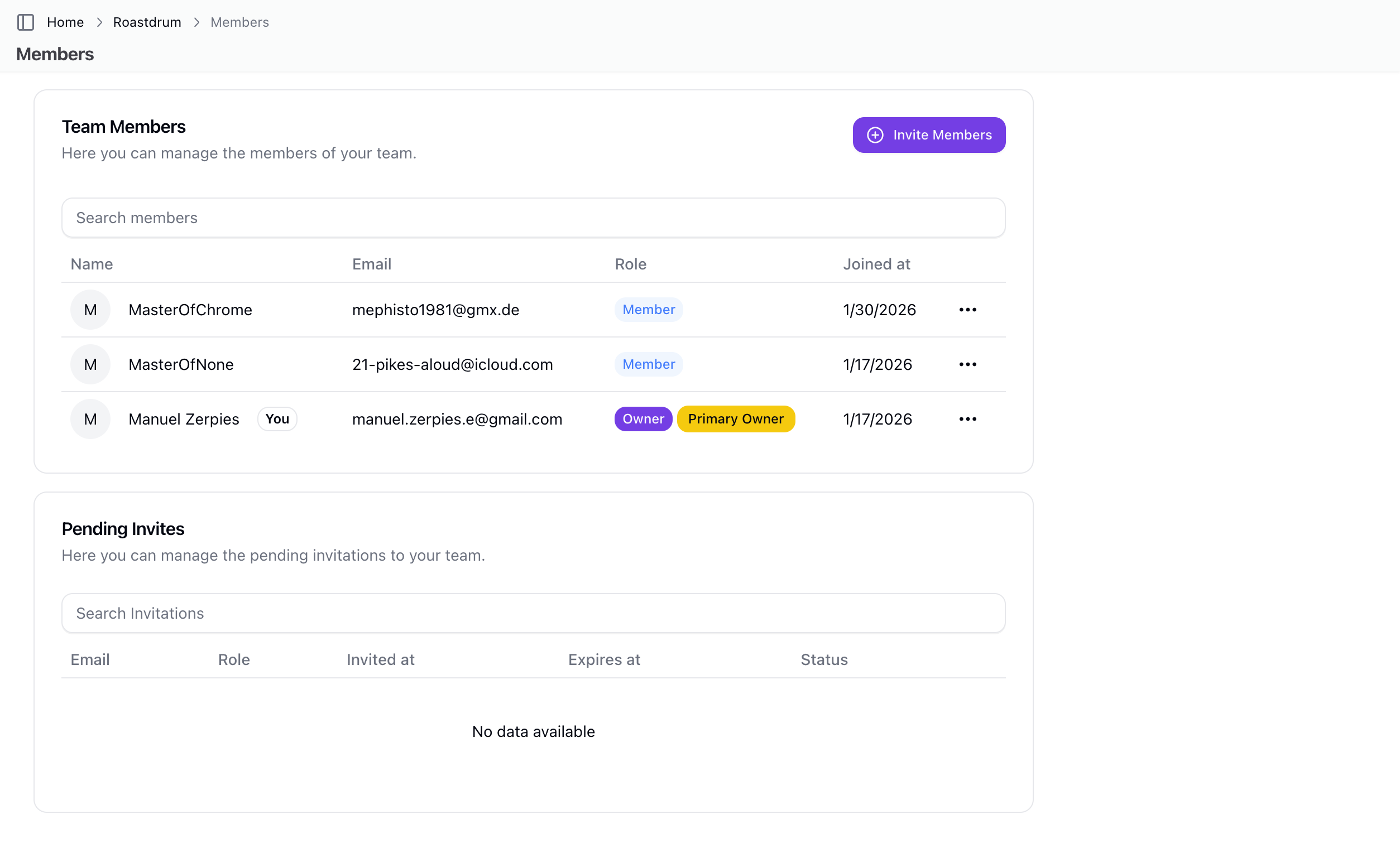
- Click Invite
- Find the Invite Member button
- Invitation dialog opens
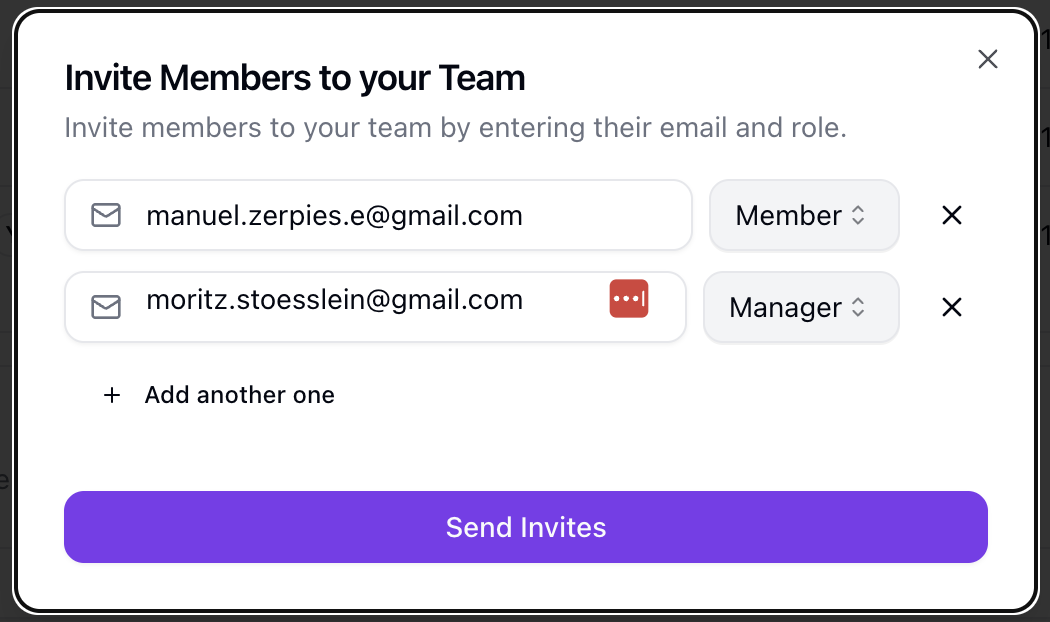
- Enter Email
- Type the person's email address
- Double-check for typos
- Select Role
- Choose the appropriate role from the dropdown
- You can only assign roles at or below your own hierarchy level
- Send Invitation
- Click Send or Invite
- Invitation email sent immediately
Inviting Multiple Members
Bulk Invite
Invite up to 5 people at once:
- Click Invite Members
- Add multiple email/role pairs:
- Click "Add another" to add more invitations
- Maximum of 5 invitations per submission
- Each invitation gets its own email and role selection
- No duplicate emails allowed in a single batch
- Send invitations
Understanding Roles
Role Hierarchy
Roles have hierarchy levels. You can only invite members to roles at or below your own level.
The system checks:
has_permission- Do you haveinvites.managepermission?has_more_elevated_role- Is your role higher than the invited role?has_same_role_hierarchy_level- Are you at the same level?
Available Roles
Roles are fetched dynamically based on:
- Your current role's hierarchy level
- Roles configured for your account
Common roles include:
- Admin - Can manage team settings and invite members
- Member - Standard access to team features
The Invitation Email
What They Receive
Invitees get an email with:
- Your team name
- Invitation link with unique token
- Instructions to accept
Invitation Expiration
- Invitations expire after 7 days by default
- Expired invitations can be renewed by administrators
Managing Pending Invitations
Viewing Pending
See outstanding invitations:
- Go to Members page
- Find the Pending Invites section
- View all sent invitations
Invitation Table Columns
| Column | Description |
|---|---|
| Invited email address | |
| Role | Assigned role |
| Invited At | When invitation was sent |
| Expires At | Expiration date |
| Status | Active or Expired |
| Actions | Update, Delete, Renew |
Updating Invitations
Change the invited user's role:
- Find the pending invitation
- Click Update or the edit action
- Select a new role
- Save changes
Renewing Invitations
If an invitation expired:
- Find the expired invitation
- Click Renew
- Expiration extended by 7 days
- Invitee can now accept again
Deleting Invitations
To revoke an invitation:
- Find the pending invitation
- Click Delete or the delete action
- Confirm deletion
- Invitation token becomes invalid
Accepting Invitations
What Happens for Invitees
When someone receives your invitation:
- Click link in email
- Sign in or Sign up
- Existing users sign in
- New users create account
- Accept invitation
- Added to your team
- Assigned the selected role
New Users
If the invitee doesn't have an account:
- They click the invitation link
- Redirected to sign-up
- Create their account
- Automatically joined to your team
Existing Users
If they already have an account:
- They click the invitation link
- Sign in if needed
- Accept the invitation
- Added to your team
Database Constraints
Business Rules
- Unique constraint on (email, account_id) - prevents duplicate invitations
- Only team accounts can have invitations (not personal accounts)
- Token-based acceptance with validation
Security Features
Permission Checks
All invitation operations validate:
invites.managepermission required- Role hierarchy validation
- Account membership verification
Token Security
- Each invitation has a unique token (UUID)
- Token validated on acceptance
- Token deleted after successful acceptance
Best Practices
Before Inviting
- Verify email - Ensure correct address
- Choose role carefully - Appropriate access level
- Consider hierarchy - Can you assign that role?
After Inviting
- Notify them - Tell them to expect the email
- Check spam - Remind to check spam folder
- Follow up - If not accepted after a few days
- Renew if needed - Before expiration
Security
- Audit regularly - Review team membership
- Remove departed - When people leave
- Role review - Ensure roles are appropriate
Troubleshooting
Invitation Not Received
If they didn't get the email:
- Check the email address is correct
- Ask them to check spam/junk
- Delete and resend the invitation
- Try a different email address
Can't Accept Invitation
If they can't accept:
- Ensure link hasn't expired
- Check they're using correct email
- Try a different browser
- Delete and send new invitation
Wrong Role Assigned
If you selected wrong role:
- For pending invitations: Update the invitation
- After they join: Change their role in Members settings
Can't Send Invitations
If you can't invite:
- Verify you have
invites.managepermission - Check you're not trying to assign a higher role than yours
- Verify account subscription status
After They Join
Verifying Membership
Confirm they joined:
- Go to Members page
- Find their name in the active members list
- Verify their role is correct
Changing Roles
To change a member's role after joining:
- Go to Members page
- Find the member
- Use the role selector to change their role
- Save changes
Related Topics
- Member Management - Full member management
- Team Overview - Team basics
- Team Settings - Team configuration