Define and track team goals with bonus targets. Bonus targets help motivate the team by setting clear objectives with associated bonus amounts.
Accessing Bonus Targets
- Ensure you're in your team account
- Click Bonus Targets in the sidebar
- The URL is
/home/[team]/bonus-targets
What are Bonus Targets?
Bonus targets are goals that:
- Set expectations - Define clear performance targets
- Reward achievement - Associate bonus amounts with targets
- Track progress - Monitor achievement in real-time
- Support multiple scopes - Target individuals, projects, or the entire account
Viewing Targets
Target List
The bonus targets page displays all targets:
| Information | Description |
|---|---|
| Name | Target identifier |
| Scope | Account, Salesperson, or Project |
| Target Amount | Goal value to achieve |
| Bonus Amount | Reward for achieving the target |
| Date Range | Start and end dates |
| Status | Active or Archived |
Archived Targets
By default, only active targets are shown. To view archived targets:
- Click Show Archived toggle
- Archived targets appear in the list
Target Scopes
Bonus targets can be scoped to different levels:
Account Scope
Team-wide targets that apply to the entire account:
- All sales across the team contribute to progress
- Everyone works toward the same goal
Salesperson Scope
Individual targets for specific team members:
- Only that person's sales count toward progress
- Requires selecting a specific team member
Project Scope
Project-specific targets:
- Only sales from that project count
- Can optionally be limited to specific zones within the project (zone bonuses)
Creating Targets
Create a New Target
- Click Create Bonus Target
- Fill in the target details:
| Field | Required | Description |
|---|---|---|
| Name | Yes | Target identifier |
| Description | No | Additional details |
| Target Amount | Yes | Goal value |
| Bonus Amount | Yes | Reward for achievement |
| Scope | Yes | Account, Salesperson, or Project |
| Start Date | Yes | When the target begins |
| End Date | Yes | When the target ends |
- Based on scope, select additional options:
- Salesperson scope: Select the team member
- Project scope: Select the project
- Zone bonus: Optionally select specific zones
- Optionally select specific products to track
- Click Create
Zone Bonuses
When creating a project-scoped target, you can make it a zone bonus:
- Select the project
- Enable Zone Bonus
- Select one or more zones
- Only sales from those zones count toward the target
Product-Specific Targets
Targets can be limited to specific products:
- Select products when creating/editing the target
- Only sales of those products count toward progress
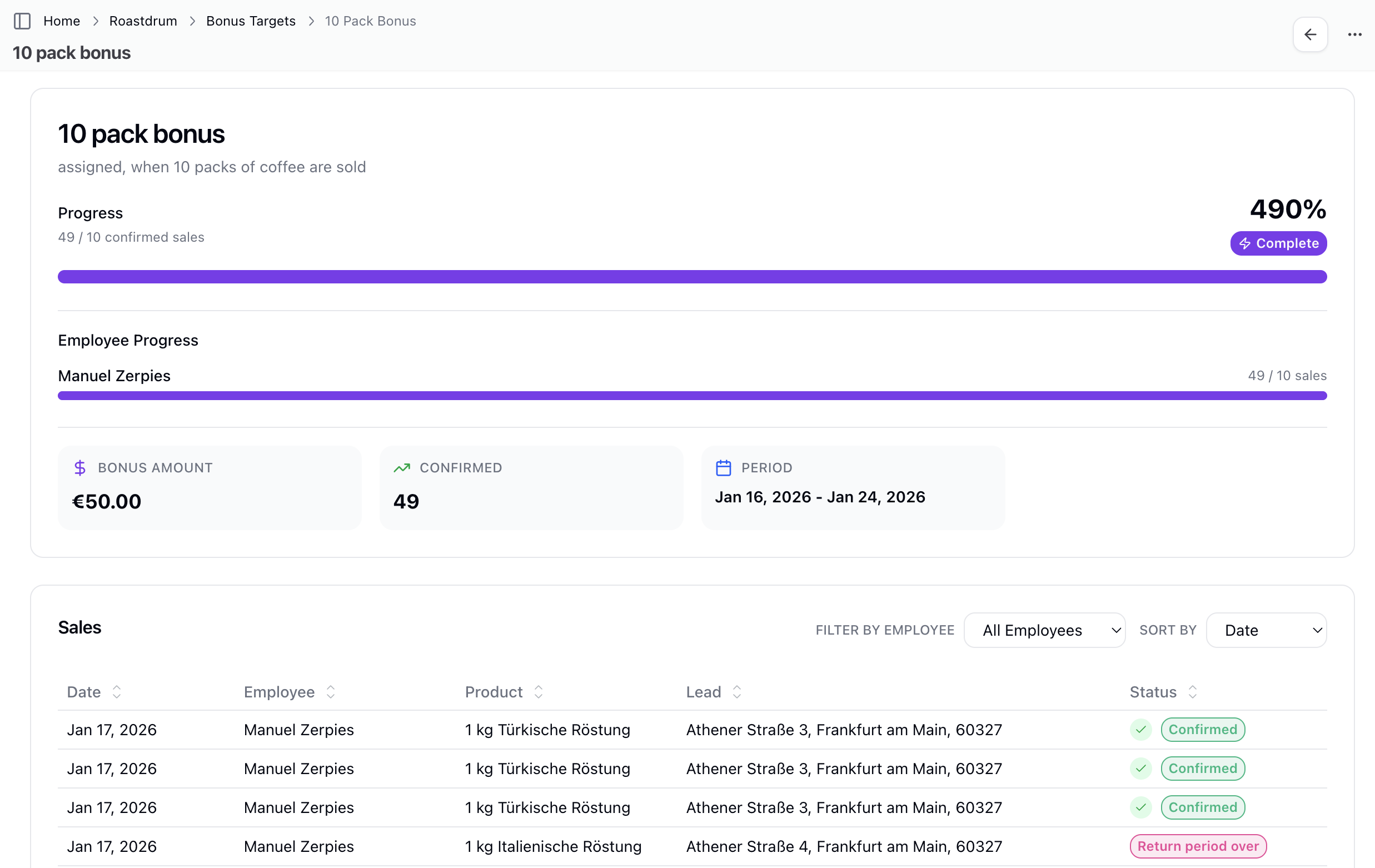
Target Detail
Viewing Target Details
Click a target to see its detail page with:
- Target information (name, scope, dates)
- Progress tracking
- Contributing sales
Progress Card
The progress card shows:
- Current progress amount
- Percentage of target achieved
- Progress bar visualization
- Remaining amount needed
Contributing Sales
The detail page lists sales that contribute to the target:
- Sale date
- Sale amount
- Product
- Salesperson (for account-wide targets)
Managing Targets
Editing a Target
- Click a target to open details
- Click Edit
- Modify the fields
- Save changes
Note: Changing target amounts affects progress calculation.
Archiving Targets
Instead of deleting, archive completed or cancelled targets:
- Click the target menu
- Select Archive
- Target moves to archived list
Archived targets:
- Preserve historical data
- Can be restored later
- Don't appear in active list by default
Restoring Archived Targets
- Enable Show Archived to see archived targets
- Click the archived target
- Select Restore from the menu
- Target becomes active again
Deleting Targets
To permanently delete a target:
- Click the target menu
- Select Delete
- Confirm deletion
Warning: Deleting a target removes it permanently. Consider archiving instead.
Best Practices
Setting Effective Targets
- Be specific - Clear names and descriptions
- Set achievable goals - Stretch but realistic targets
- Define time periods - Clear start and end dates
- Align with strategy - Targets should support business goals
Using Different Scopes
- Account scope - For team-wide initiatives
- Salesperson scope - For individual motivation
- Project scope - For territory or campaign focus
- Zone bonuses - For geographic focus
Product-Specific Targets
Use product selection to:
- Focus on new product launches
- Promote specific products
- Clear inventory
Troubleshooting
Progress Not Updating
If progress seems stuck:
- Verify sales are recorded correctly
- Check if sales match the target scope
- Verify products match (if product-specific)
- Check the date range
- For zone bonuses, verify sales are in selected zones
Can't Edit Target
If you can't edit:
- Verify you have manager or owner permissions
- Check if the target is archived
Target Not Visible
If a target doesn't appear:
- Check the archived filter
- Verify you're in the correct team account
- Confirm the target was created
Related Topics
- Goals - Personal goals
- Commission - Earnings tracking
- Sales - Sales that contribute to targets
- Dashboards - Target visualization in widgets