This guide walks you through enabling MFA to add an extra layer of security to your account.
What is MFA?
Multi-Factor Authentication (also called Two-Factor Authentication or 2FA) adds security by requiring two things to sign in:
- Something you know - Your password
- Something you have - A code from your authenticator app
This means even if someone gets your password, they can't access your account without your phone.
Prerequisites
Before setting up MFA:
- Install an authenticator app on your phone
- Have your phone accessible
- Be signed in to your account
Recommended Authenticator Apps
| App | Platform |
|---|---|
| Google Authenticator | iOS, Android |
| Microsoft Authenticator | iOS, Android |
| Authy | iOS, Android, Desktop |
| 1Password | iOS, Android, Desktop |
Setting Up MFA
Step 1: Access Security Settings
- Click your profile avatar
- Go to Settings
- Navigate to Security section (scroll down to Multi-Factor Authentication)
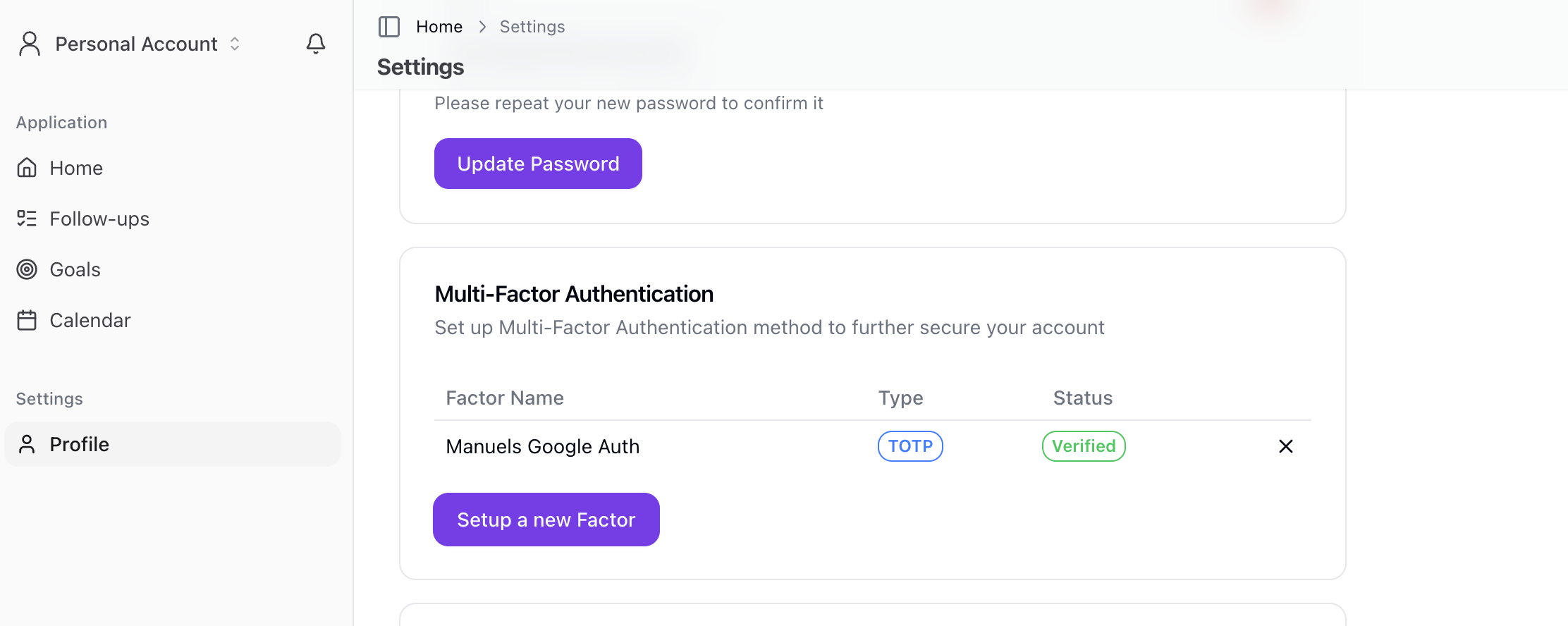
Step 2: Start MFA Setup
- Find Multi-Factor Authentication section
- Click Enable MFA or Set Up
- The setup dialog opens
Step 3: Name Your Factor
- Enter a friendly name for the factor
- Example: "iPhone", "Work Phone", "Backup Device"
- This helps identify the factor later
Step 4: Scan QR Code
A QR code appears on screen:
- Open your authenticator app
- Tap + or Add Account
- Select Scan QR Code
- Point your camera at the QR code
- Account is added to your app
The QR code uses your app name as the issuer for easy identification.
Step 5: Enter Verification Code
- Look at your authenticator app
- Find the 6-digit code for Sellfaster
- Enter the code in the verification field (6 digits)
- Click Verify
The system creates a challenge and verifies your code.
Step 6: Confirmation
MFA is now enabled:
- You'll see a success message
- MFA status shows "Enabled"
- Factor appears in your factors list
- Next sign-in will require code
Signing In with MFA
Normal Sign-In Process
- Enter your email and password
- Click Sign In
- MFA verification page appears at
/auth/verify - If you have multiple factors, select which one to use
- Open your authenticator app
- Enter the current 6-digit code
- Click Verify
- You're signed in!
Assurance Levels
The system uses Assurance Levels (AAL):
- AAL1: Password-only authentication
- AAL2: Password + MFA verification
Certain actions may require AAL2 (MFA verification).
Managing MFA
Viewing MFA Status
Check your enrolled factors:
- Go to Settings > Security
- See list of enrolled factors
- Each shows: friendly name, factor type (TOTP), and status
Factor Table Columns
| Column | Description |
|---|---|
| Name | Your friendly name for the factor |
| Type | TOTP (Time-based One-Time Password) |
| Status | Verified or Unverified |
| Actions | Delete/Unenroll |
Disabling MFA (Unenrolling)
To remove a factor:
- Go to Settings > Security
- Find the factor in the list
- Click Delete or the delete icon
- Confirm the deletion
- Factor is unenrolled
Note: Removing all factors disables MFA for your account.
RLS and MFA Requirements
Super Admin Access
Super admins are required to have MFA enabled:
- The
is_super_admin()function requires AAL2 - This ensures privileged operations have enhanced security
MFA Compliance
The system has an is_mfa_compliant() function:
- If you have verified MFA factors, AAL2 is required
- Without MFA factors, AAL1 is sufficient
- This applies to various sensitive operations
Protected Tables
MFA compliance policies apply to:
- Accounts
- Account memberships
- Subscriptions
- Subscription items
- Role permissions
- Invitations
- Orders
- Order items
- Notifications
Troubleshooting
Code Not Working
If your code isn't accepted:
- Check the time - Codes change every 30 seconds
- Wait for new code - Try the next one
- Verify correct account - Right entry in app?
- Check phone time - Must be accurate
Phone Time Issues
TOTP codes depend on accurate time:
- Check your phone's time settings
- Enable automatic time
- Restart your authenticator app
- Try again
Lost Phone
If you lose your phone:
- You'll need to contact support for identity verification
- After verification, MFA can be reset
- Set up MFA again with a new device
Codes Always Rejected
If codes never work:
- Check your phone's time settings (must be accurate)
- Enable automatic time sync
- Disable MFA and re-enable (if you can still access)
- Try a different authenticator app
Factor Won't Delete
If you can't remove a factor:
- Verify you're authenticated
- Check for any errors in the console
- Try refreshing the page
- Contact support if issue persists
MFA Best Practices
Security Tips
- Always enable MFA - Extra protection for your account
- Secure your phone - Lock screen, biometrics
- Backup your authenticator - Some apps support cloud backup
- Use descriptive names - Makes managing multiple factors easier
What If You Change Phones?
When getting a new phone:
- Before wiping old phone:
- Transfer authenticator accounts if app supports it
- Or keep old phone accessible temporarily
- After setting up new phone:
- Install authenticator app
- Go to Security settings
- Unenroll old factor
- Enroll new factor with new device
Multiple Factors
Consider adding multiple factors:
- Primary phone
- Backup device
- Different authenticator apps
If you have multiple factors, you can choose which one to use during sign-in.
Technical Details
TOTP Standard
Sellfaster uses TOTP (Time-based One-Time Password):
- Codes change every 30 seconds
- 6-digit codes
- Standard algorithm compatible with most authenticator apps
Authentication Flow
- User enters password (AAL1)
- If MFA required, redirected to
/auth/verify - User selects factor (if multiple)
- User enters TOTP code
- System verifies via
challengeAndVerify - Session upgraded to AAL2
Related Topics
- Security Settings - Full security options
- Signing In - Authentication
- Password Reset - Password recovery