The personal calendar shows your scheduled follow-ups in a visual calendar interface, helping you plan your work day and manage callbacks.
Accessing the Calendar
- Click Calendar in the sidebar navigation
- View your scheduled follow-ups
- The URL is
https://sellfaster.eu/home/calendar
Calendar Display
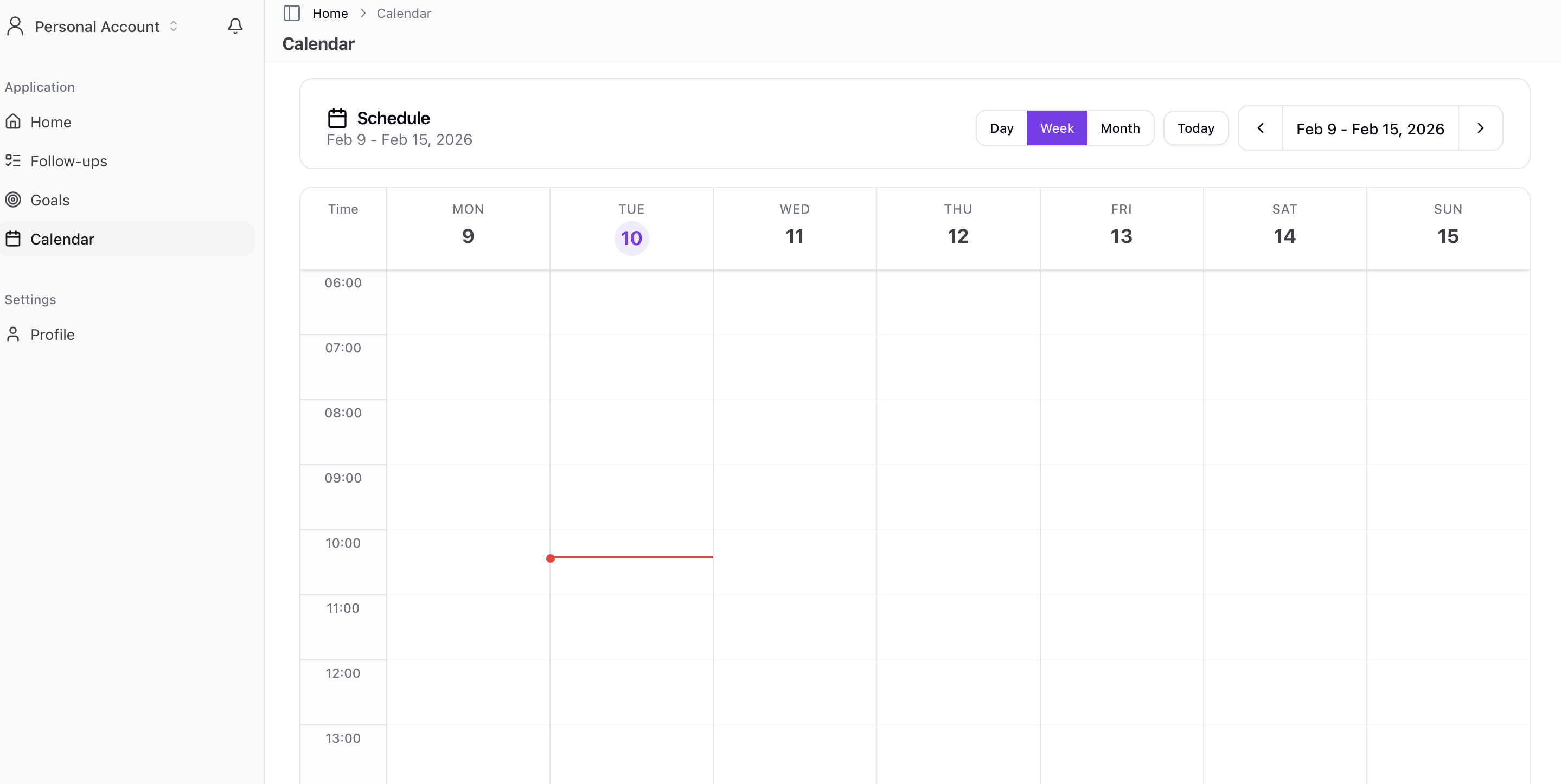
The calendar uses a weekly schedule view that displays your follow-ups as events:
View Settings
- Week View - The calendar shows a 7-day week view
- Week starts on Monday - Calendar weeks begin on Monday
- Time range - Hours from 6:00 AM to 10:00 PM are displayed
- 1-hour duration - Each follow-up is displayed as a 1-hour time block
Event Information
Each follow-up event displays:
- Title - Street address and name if applicable
- Subtitle - Interaction state name
- Description - Comment from the interaction (if any)
- Color - Campaign-specific color for easy identification
Tooltips
Hover over an event to see additional metadata:
| Field | Description |
|---|---|
| Campaign | Campaign name |
| Zone | Zone name (if assigned) |
| Address | Full street address |
| Name | Contact name |
| Zip | Postal code |
| City | City name |
| Status | Address status |
Event Colors
Events are color-coded by project for easy identification. Each campaign has a consistent color generated from a palette including:
- Blue, Red, Emerald, Amber, Violet
- Cyan, Lime, Pink, Indigo, Teal
This helps you quickly identify which project a follow-up belongs to when viewing multiple projects.
Navigation
Clicking Events
Click on any event to navigate directly to the address detail page. The link includes the project ID for proper context:
https://sellfaster.eu/home/addresses/[addressSlug]?projectId=[projectId]
From there you can:
- View full lead information
- Record a new interaction
- Record a sale
- See interaction history
Empty State
If no follow-ups are scheduled, the calendar displays: "No follow-ups scheduled"
This means you don't have any upcoming follow-up dates from interactions.
Data Sources
The calendar displays follow-ups from:
- All team accounts you're a member of
- Interactions where a follow-up date was set
- Future follow-ups only (today and onwards)
Creating Follow-Ups
To add events to your calendar:
- Go to an lead detail page
- Click Add Interaction
- Enable the follow-up option
- Set the date and time
- Save the interaction
The follow-up appears on your calendar automatically.
Note: Follow-ups cannot be created directly from the calendar. They must be created through interactions on address detail pages.
See Follow-Up Reminders for detailed instructions.
Mobile Viewing
The calendar is responsive and works on mobile devices:
- Scroll horizontally to see the full week
- Tap events to navigate to address details
- Full-height display for maximum visibility
Relationship with Follow-Ups Page
The calendar and Follow-Ups page show the same data in different formats:
| Feature | Calendar | Follow-Ups Page |
|---|---|---|
| View format | Visual weekly schedule | List/table |
| Sorting | By time | By date or distance |
| Quick actions | Click to navigate | Add interaction, sale, delete |
| Search | Not available | Available |
Use the calendar for visual planning and the Follow-Ups page for managing and searching.
Subscribing to Your Calendar
You can subscribe to your Sellfaster follow-up calendar from any external calendar application — Google Calendar, Apple Calendar, Outlook, or any app that supports the iCalendar (ICS/webcal) format.
How to subscribe
- Click the Subscribe button in the calendar header
- A dialog opens showing your unique subscription URL
- Copy the URL and add it as a new calendar in your external app
- In Google Calendar: Settings → "Add other calendars" → "From URL"
- In Apple Calendar: File → "New Calendar Subscription"
- In Outlook: Add calendar → "Subscribe from web"
- Your follow-ups will appear in the external app and stay in sync automatically
Scope
The personal subscription URL contains only your own follow-ups — the same events shown on this calendar page.
Regenerating your token
If you need to revoke access (for example, if the URL was shared unintentionally), click Regenerate token in the subscription dialog. The old URL stops working immediately and a new one is issued.
Related Topics
- Follow-Ups - List view of follow-ups
- Follow-Up Reminders - Creating follow-ups
- Team Calendar - Team-level calendar
- Dashboard - Quick overview