Manage your team members, send invitations, assign roles, and control access permissions.
Accessing Member Management
- Ensure you're in your team account
- Click Members in the sidebar
- The URL is
https://sellfaster.eu/home/[team]/members
Team Members List
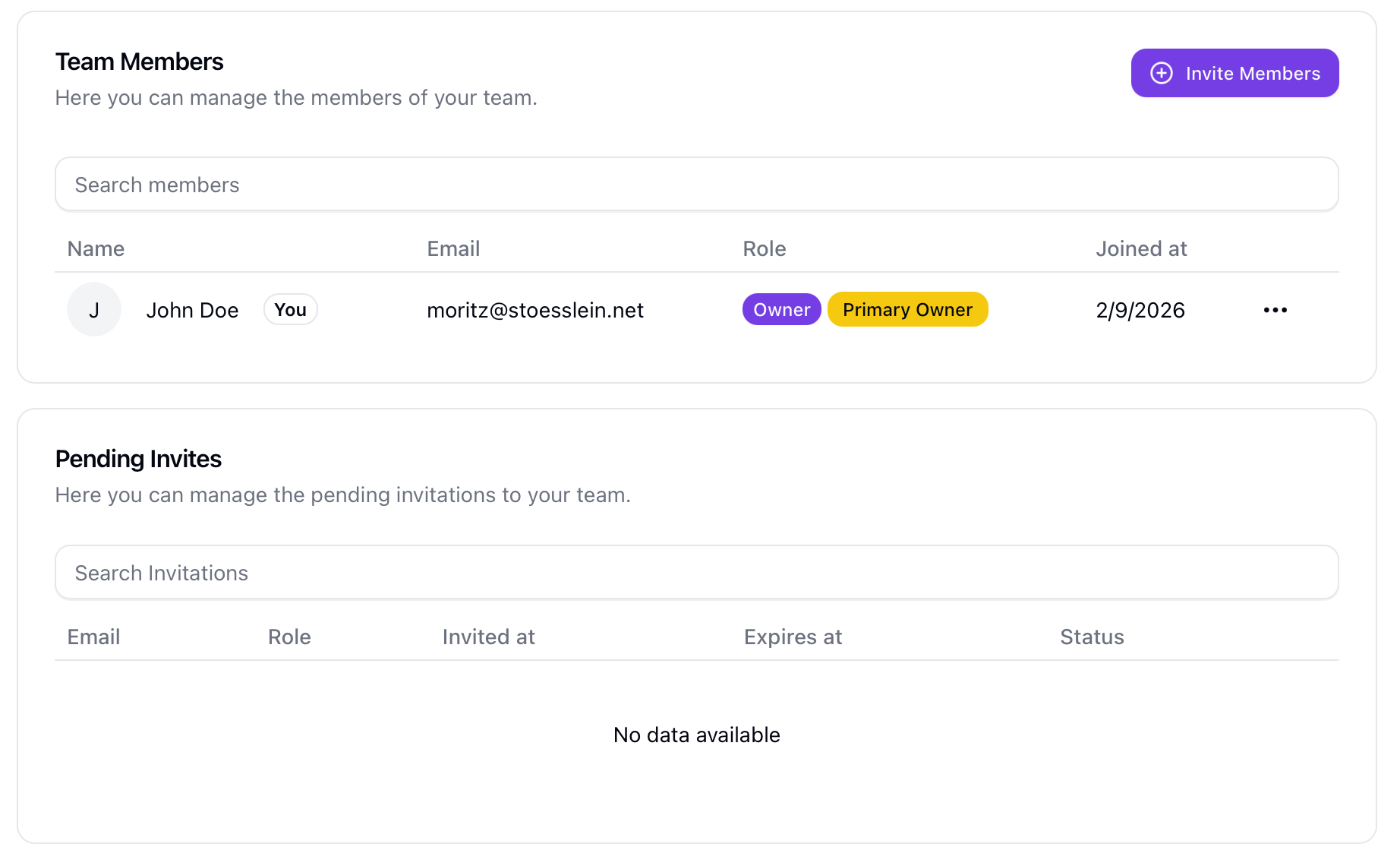
Viewing Members
The members table displays:
| Column | Description |
|---|---|
| Name | Member's display name (shows "You" badge for your own entry) |
| Account email | |
| Role | Role badge (owner, member, or custom role) |
| Joined | Date they joined the team |
| Actions | Dropdown menu with available actions |
Profile
Profiles are accessed via the actions menu View Profile.
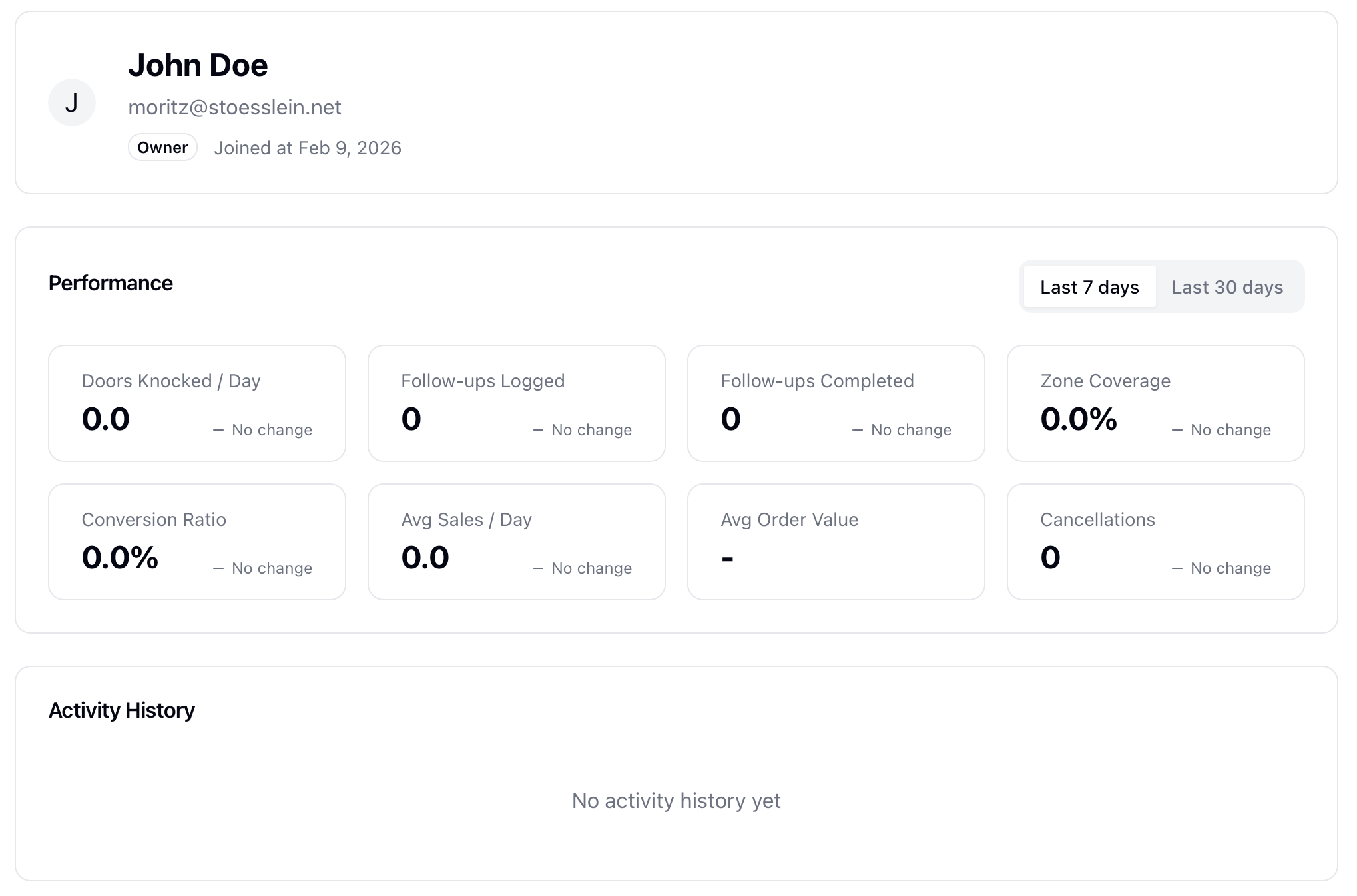
It contains performance KPIs as well as the latest interactions and sales of the team member.
Role Badges
Roles are displayed with color-coded badges:
- Owner - No background color
- Manager - Outlined style
- Member - Blue background
Inviting New Members
Sending Invitations
- Click Invite Members button
- Enter email address
- Select role for invitee
- Click Send Invitation
You can invite up to 5 members at once:
- Click Add another to add more email fields
- Each invitee receives the role you select
- Click Send Invitations
Note: Inviting members requires you to have the roler manager or owner.
Role Selection
When inviting, you can only assign roles at or below your own hierarchy level. This prevents members from granting permissions they don't have themselves.
Invitation Email
Invitees receive an email with:
- Team name
- Accept invitation link
- The link to create an account or sign in
Pending Invitations
Viewing Invitations
The invitations table shows outstanding invitations:
| Column | Description |
|---|---|
| Invited email address | |
| Role | Role that will be granted |
| Invited At | When the invitation was sent |
| Expires At | When the invitation expires |
| Status | Active (green) or Expired (warning) |
| Actions | Available actions |
Managing Invitations
Actions available for pending invitations:
| Action | Description | Requirement |
|---|---|---|
| Update Invitation | Change the assigned role | manager or owner role |
| Renew Invitation | Resend an expired invitation | manager or owner role, invitation must be expired |
| Remove Invitation | Cancel the invitation | manager or owner role |
Member Roles
Role Hierarchy
Roles have a hierarchy level that determines permissions. Higher hierarchy levels grant more access (owner > manager > member).
Changing Roles
To change a member's role:
- Find the member in the list
- Click the actions menu (three dots)
- Select Update Role
- Choose the new role
- Confirm
Restrictions:
- You cannot change your own role
- You cannot change the primary owner's role
- You can only assign roles at or below your hierarchy level
- Primary owners can change any role
Transferring Ownership
Primary owners can transfer team ownership:
- Find the member to receive ownership
- Click the actions menu
- Select Transfer Ownership
- Read the warning disclaimer
- Complete OTP verification
- Confirm transfer
Warning: After transfer, you lose owner privileges and the new owner gains full control of the team.
Removing Members
Remove from Team
To remove a member:
- Find the member
- Click the actions menu
- Select Remove Member
- Confirm removal
Restrictions:
- You cannot remove yourself (use Leave Team in Settings instead)
- You cannot remove the primary owner
- You can only remove members with lower or equal role hierarchy
- Primary owners can remove any member
What Happens When Removed
- Member loses access immediately
- Their content (addresses, sales, etc.) remains with the team
- Historical records are preserved
- They can be invited back later
Permissions Required
| Action | Permission Needed |
|---|---|
| View members | Team membership |
| Invite members | manager or owner role |
| Change roles | manager or owner role (or primary owner) |
| Remove members | manager or owner role (or primary owner) |
| Transfer ownership | Primary owner only |
Troubleshooting
Invitation Not Received
If invitee doesn't receive the email:
- Check their spam folder
- Verify the email address is correct
- Resend the invitation
- Try a different email address
Can't Change Role
If you can't modify a role:
- Verify you have the
managerorownerrole - You cannot change your own role
- You cannot demote the primary owner
- Check if the target role is above your hierarchy level
Can't Remove Member
If you can't remove a member:
- You cannot remove yourself
- You cannot remove the primary owner
- The member may have a higher role hierarchy than you
Member Can't Access Team
If a member can't access the team:
- Check their invitation status (accepted vs pending)
- Verify they're using the correct email to sign in
- Check they haven't been removed
- Have them sign out and back in
Related Topics
- Team Settings - Team configuration
- Team Overview - Team basics
- Inviting Members - Detailed how-to