Track and manage all sales across your team. View sales records, filter by various criteria, and manage sale statuses.
Accessing Team Sales
- Ensure you're in your team account
- Click Sales in the sidebar
- The URL is
/home/[team]/sales
Sales List
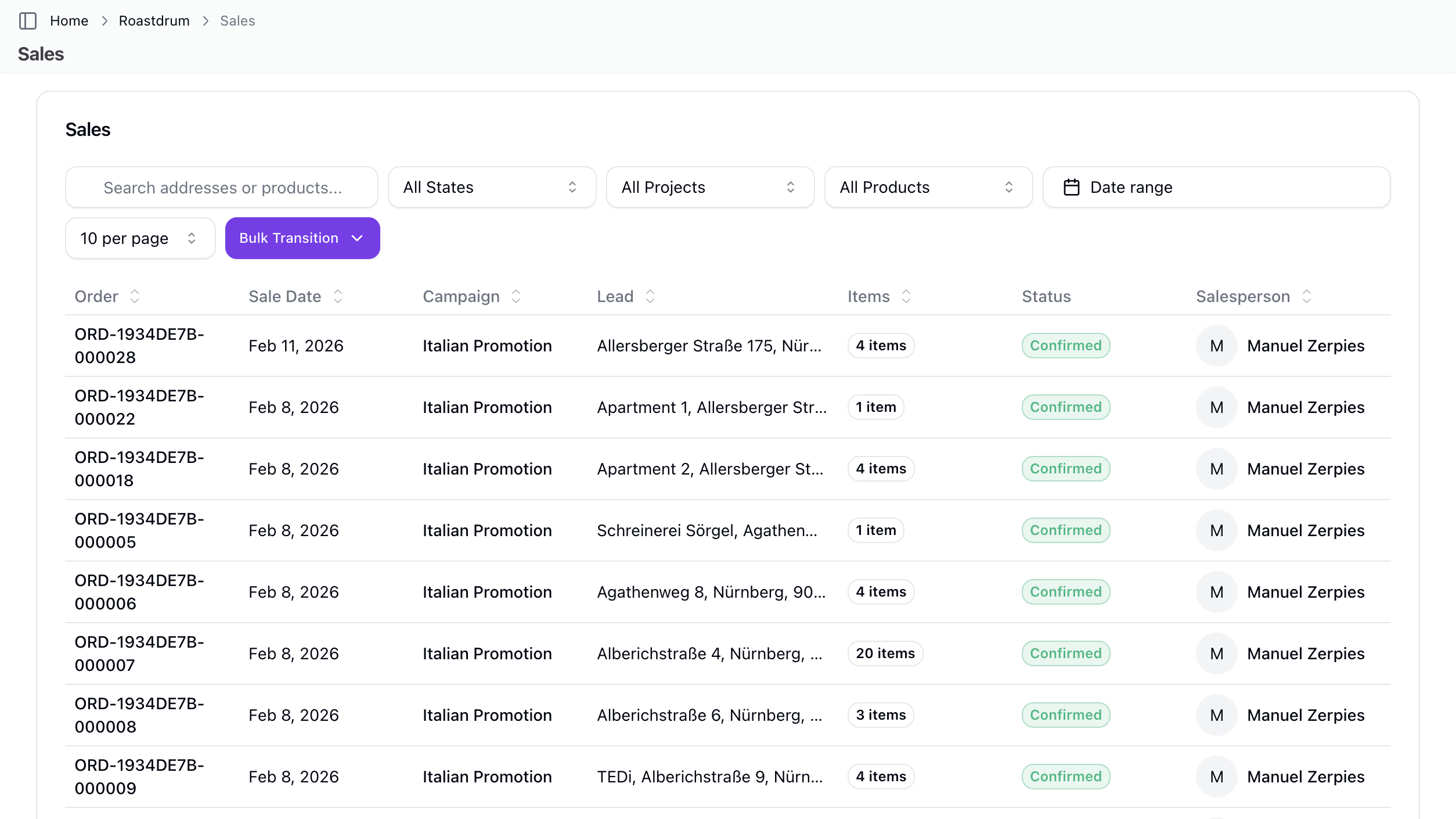
Table Columns
The sales table shows all team sales with the following columns:
| Column | Description |
|---|---|
| Order # | Order number (or "Standalone" for single sales) |
| Sale Date | When the sale was recorded |
| Campaign | Associated project |
| Lead | Customer address with unit/name info |
| Items | Number of items in the order |
| Status | Current sale state |
| Salesperson | Team member who made the sale |
Row Navigation
Click any row to view the full sale details.
Filtering Sales
Available Filters
| Filter | Description |
|---|---|
| Search | Search addresses or products |
| State | Filter by sale state |
| Project | Filter by project |
| Product | Filter by product |
| Start Date | Filter from date |
| End Date | Filter to date |
Using Filters
- Enter search text to filter by address or product
- Select a state from the dropdown to filter by status
- Select a project to see only that project's sales
- Select a product to see sales containing that product
- Use date inputs to filter by date range
- Click Clear Filters to reset all filters
Sale Details
Viewing a Sale
Click a sale row to view the detail page showing:
Sale Details Card:
- Sale number
- Product name
- Price (shows original and sale price if discounted)
- Sale date
- Status
- Salesperson
- Commission amount
- Commission paid status
- Link to project
Additional Information:
- Order link (if part of an order)
- Notes
- Linked bonus targets
Applied Promotions
If promotions were applied to the sale, a dedicated card shows:
- Promotion name and type
- Original price vs final price with savings
- Original commission vs adjusted commission
Address Information
Shows the address where the sale was made with links to:
- View address details
- View project
Commissions Table
Lists all commission entries for the sale:
- Commission type (earned/reclaimed)
- Amount
- Salesperson
- Payment date
Status History
Timeline showing all status changes for the sale.
Managing Sales
Editing a Sale
Users with sales:update permission can edit sales:
- Open the sale detail page
- Click the actions menu (three dots)
- Select Edit
- Modify the details in the dialog
- Save changes
Transitioning Sale Status
If valid state transitions are available:
- Open the sale detail page
- Click the actions menu
- Select a transition option (e.g., "To Completed")
- The status updates immediately
Bulk State Transitions
From the sales list, you can bulk transition visible sales:
- Apply filters to show the sales you want to transition
- Click Bulk Transition
- Select the target state
- All visible sales will transition to that state
Note: Only sales with valid transitions to the target state will be updated.
Viewing Audit History
Team owners can view the audit history:
- Open the sale detail page
- Click the actions menu
- Select View Audit History
Sale States
Sales follow the state workflow defined in your Sale Models. The available states and transitions depend on:
- The sale model assigned to the project
- The current state of the sale
See Sale Models for workflow configuration.
Commission Tracking
How Commission Works
- Commission is calculated based on the product's current commission amount
- Promotions may adjust the commission amount
- Commission entries are created when sales reach certain states
Commission on Sales
Each sale shows:
- Commission amount
- Whether commission has been paid
- Payment date (if paid)
Commissions automatically feed into:
- Commission reports
- Payslip calculations
Best Practices
Recording Sales
- Record promptly - Enter sales when they happen
- Include notes - Add context for future reference
- Verify details - Check product, price, and address before saving
Team Management
- Regular review - Check sales regularly
- Use filters - Find specific sales quickly
- Track status - Keep sale states current
- Monitor performance - Use dashboards for analytics
Troubleshooting
Sale Not Appearing
If a sale isn't showing:
- Check the date filter range
- Check the project filter
- Check the state filter
- Check the product filter
- Clear all filters and search again
- Refresh the page
Commission Not Showing
If commission seems missing:
- Verify the product has a commission amount set
- Check if the sale status affects commission
- Review sale model rules
Can't Edit Sale
If you can't edit:
- Verify you have
sales:updatepermission - Check with your team owner/manager
Status Transition Not Available
If you can't transition to a state:
- Check the sale model configuration
- Verify the transition is allowed from the current state
- Ensure you have
sales:updatepermission
Related Topics
- Recording Sales - How to record sales
- Commission - Earnings tracking
- Inventory - Product management
- Sale Models - Workflow configuration
- Project Sales - Project-specific sales