Define and manage the states that leads can be in. States help your team track the progress of interactions with each lead.
Accessing Interaction States
- Ensure you're in your team account
- Click Interaction States in the sidebar
- The URL is
https://sellfaster.eu/home/[team]/states
What are Interaction States?
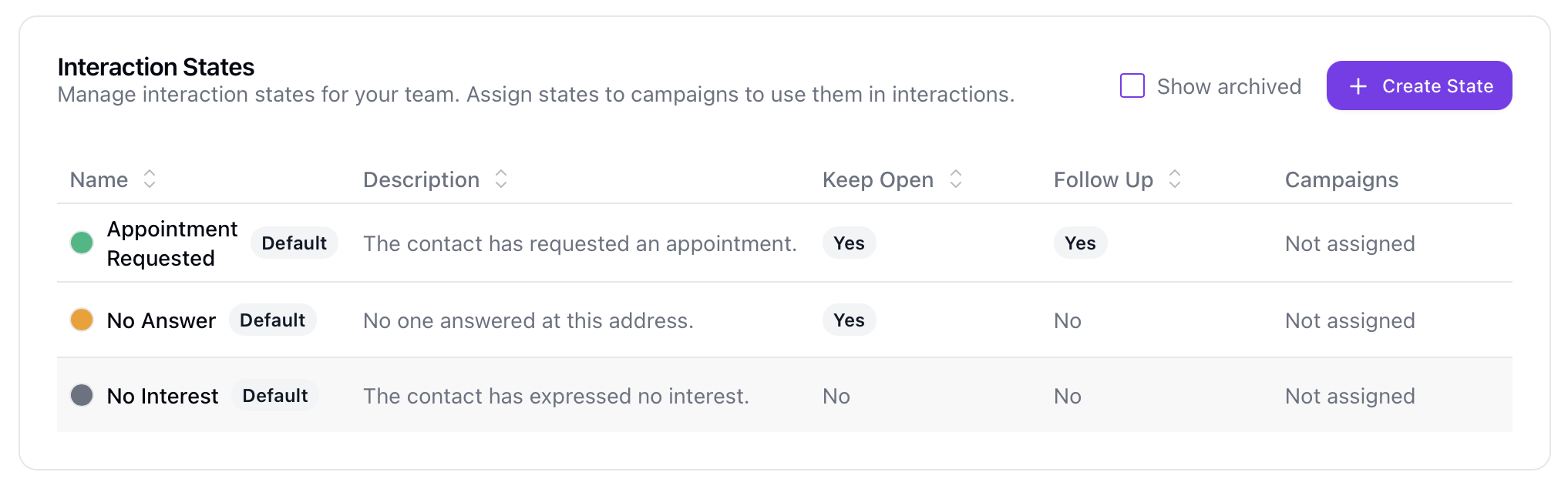
States represent the current status of an address in your sales process. They help your team:
- Track progress of each lead
- Filter leads by status
- Color-code map markers
- Coordinate follow-up activities
Default Interaction States
When a new team is created, three default states are automatically added:
| State | Keep Open | Follow Up | Color |
|---|---|---|---|
| No Interest | No | No | Gray |
| No Answer | Yes | No | Amber |
| Appointment Requested | Yes | Yes | Green |
Viewing States
States Table
The states table displays:
| Column | Description |
|---|---|
| Name | State name with colored indicator. Shows "Default" badge if default, "Archived" if archived |
| Description | State description (optional) |
| Keep Open | Badge showing Yes/No |
| Follow Up | Badge showing Yes/No |
| Projects | Projects using this state (shows first 2 with count of additional) |
Filtering States
By default, archived states are hidden. Toggle Show archived to view them.
Creating States
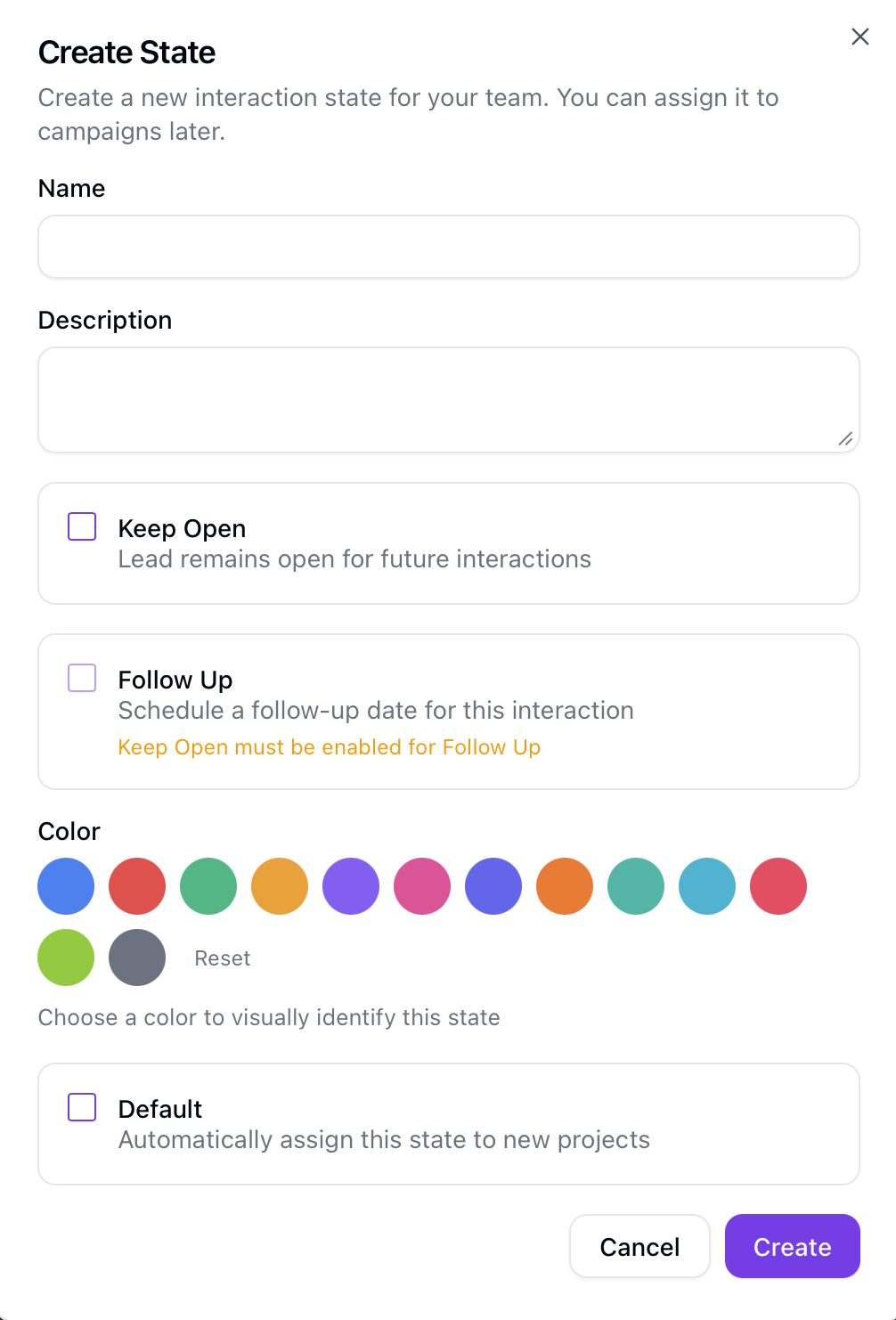
Add New State
- Click Create State
- Fill in the form:
- Name (required) - Short, clear name
- Description (optional) - What this state means
- Keep Open - Lead remains open for future interactions
- Follow Up - Requires scheduling a follow-up date (only available if Keep Open is enabled)
- Color - Select from preset colors or enter a custom hex code
- Default - Automatically assign this state to new campaigns
- Click Save
Note: Creating states requires the role
managerorowner.
State Fields
| Field | Required | Description |
|---|---|---|
| Name | Yes | State identifier (max 255 characters) |
| Description | No | Explanation of the state |
| Color | No | Hex color code (e.g., #3B82F6). Auto-determined if not set |
| Keep Open | No | Default: Yes. If enabled, lead remains active |
| Follow Up | No | Default: No. If enabled, requires follow-up date (requires Keep Open) |
| Default | No | If enabled, automatically assigned to new campaigns |
| Allow Editing Contact | No | If enabled, users can edit the lead's contact info when recording an interaction in this state |
| Scramble Data | No | If enabled, moving a lead to this state immediately anonymizes it (name, GDPR-relevant custom field values deleted, AI summary redacted; all but one interaction/sale scrubbed for context) |
| Max Retention (days) | No | After this many days the system automatically disconnects the address and clears comments/notes for interactions in this state |
State Behavior
Keep Open:
- When enabled: Lead remains in the active pipeline
- When disabled: Lead is considered closed/completed
Follow Up:
- Can only be enabled if Keep Open is also enabled
- When enabled: System prompts for a follow-up date when this state is selected
- Useful for states like "Callback Requested" or "Meeting Scheduled"
GDPR Properties
Three optional fields on each interaction state control how Sellfaster handles personal data for leads in that state.
Allow Editing Contact permits agents to modify a lead's contact details (name, address, phone, email) directly inside the interaction recording dialog. Contact editing is disabled by default across all states to prevent untracked changes to personally identifiable information; enable this only for states where your team has a documented legal basis for updating contact data.
Scramble Data, when enabled, triggers immediate anonymization the moment a lead is moved into this state. The lead's name is set to null, all custom field values marked as GDPR Relevant are deleted, the AI-generated summary is redacted, and all but one interaction and one sale record are permanently removed (the most recent records of each type are retained for business-context purposes). Use this for terminal states such as "Do Not Contact" or "Erased".
Max Retention (days) sets a time limit on how long personal data associated with interactions in this state is kept. After the configured number of days, the system automatically disconnects the linked address and clears all comments and notes on those interactions. This is independent of the global orphan data retention setting in Team Settings.
For a full overview of all GDPR controls, see GDPR Settings & Data Protection.
Color Selection
Colors help visually identify states on:
- Map markers
- Table badges
A predefined color palette is available, or you can enter a custom hex color. If no color is selected, one is automatically determined based on the Keep Open and Follow Up settings.
Editing States
Modify State
- Click the actions menu (three dots) on the state row
- Select Edit
- Update the fields
- Save changes
Note: Editing states requires the role
managerorowner.
Campaign Assignments
States are assigned to projects to make them available when recording interactions.
Assign to Campaigns
- Click the actions menu on a state
- Select Assign to Projects
- Toggle projects on/off to assign/unassign
- Changes save automatically
The dialog shows:
- All active and draft campaigns
- Campaign status badge
- Current assignment status
Note: Archived states cannot be assigned to campaigns.
Archiving States
Archive a State
Instead of permanently deleting states, you can archive them to preserve historical data:
- Click the actions menu on the state
- Select Archive
- Review the warning (shows how many projects use this state)
- Confirm
When archived:
- State is removed from all campaign assignments
- Existing interactions using this state are preserved
- State no longer appears in dropdowns
- State can be restored later
Note: Archiving states requires the role
managerorowner.
Restore a State
- Enable Show archived to view archived states
- Click the actions menu on the archived state
- Select Unarchive
- State becomes active again
After restoring, you'll need to reassign the state to campaign.
Audit History
Team owners can view the change history for any state:
- Click the actions menu on a state
- Select View Audit History
- See all changes made to the state and its campaign assignments
Permissions
| Action | Permission Required |
|---|---|
| View states | Every team member sees states relevant in their campaigns |
| Create states | Role manager or owner |
| Edit states | Role manager or owner |
| Archive/Restore states | Role manager or owner |
| Assign to projects | Role manager or owner |
| View audit history | Team owner only |
Best Practices
Designing States
- Keep it simple - Start with a few essential states
- Clear names - Use names that are easy to understand
- Distinct colors - Use different colors for easy visual identification
- Logical flow - Order states to match your sales process
Common State Sets
Basic Set:
- No Answer (Keep Open)
- Interested (Keep Open + Follow Up)
- Not Interested (Closed)
Extended Set:
- New (Keep Open)
- Not Home (Keep Open)
- Contacted (Keep Open)
- Interested (Keep Open + Follow Up)
- Appointment Set (Keep Open + Follow Up)
- Not Interested (Closed)
- Do Not Contact (Closed)
Integration with Other Features
Map Colors
States determine marker colors on maps, providing quick visual identification of address status.
Filtering
Filter addresses by state in:
- Address lists
- Project views
- Dashboard widgets
Reporting
States appear in reports showing:
- Distribution by state
- Conversion rates
- Team performance
Troubleshooting
State Not Appearing in Dropdown
If a state doesn't appear when recording an interaction:
- Verify the state is assigned to the project
- Check the state is not archived
- Refresh the page
Wrong Color on Map
If the map shows an incorrect color:
- Check the state's color setting
- Clear browser cache
- Refresh the map
Can't Archive State
If you can't archive a state:
- Verify you have role
managerorowner. - Check if you're the team owner or have sufficient role hierarchy
Related Topics
- Sale Models - Sale workflow configuration
- Managing Addresses - Using states with addresses
- Recording Interactions - Changing address states
- Team Overview - Team features
- GDPR Settings & Data Protection - Configure data retention and handle subject requests