Four improvements shipping today: more ways to get your data out of Sellfaster, clearer feedback when configuring sales models, and the ability to follow your follow-ups in the calendar app of your choice.
CSV Export
You can now export lead, interaction, and sales data as CSV files directly from your personal home page and from any campaign's leads view.
What you can export
- Leads – all addresses with their current status and metadata
- Interactions – every recorded interaction within the selected date range
- Sales – all recorded sales within the selected date range
How to export
- Click the Export CSV button in the toolbar of your personal home page or the campaign leads view
- Choose the data type: Leads, Interactions, or Sales
- Set a date range to limit the results (required for Interactions and Sales)
- Optionally enable Include custom attributes to add any custom fields to the export
- Click Export – your browser downloads the CSV file immediately
Custom attributes are included as additional columns at the end of each row. If a record has no value for a custom attribute, the cell is left empty.
Dashboard PDF Export
Team dashboards can now be exported as a multi-page PDF document.
Click the Export PDF button in the dashboard toolbar. Sellfaster captures each widget at 2× resolution, then composes the pages and downloads the resulting A4 PDF file. All widgets visible on the dashboard at the time of export are included.
This is useful for sharing dashboard snapshots in reports or presentations without granting recipients access to Sellfaster.
Dashboard widget time period update
You can now select the time period "yesterday" and "today" as a valid option in widgets on the dashboard.
Sales Model Validation
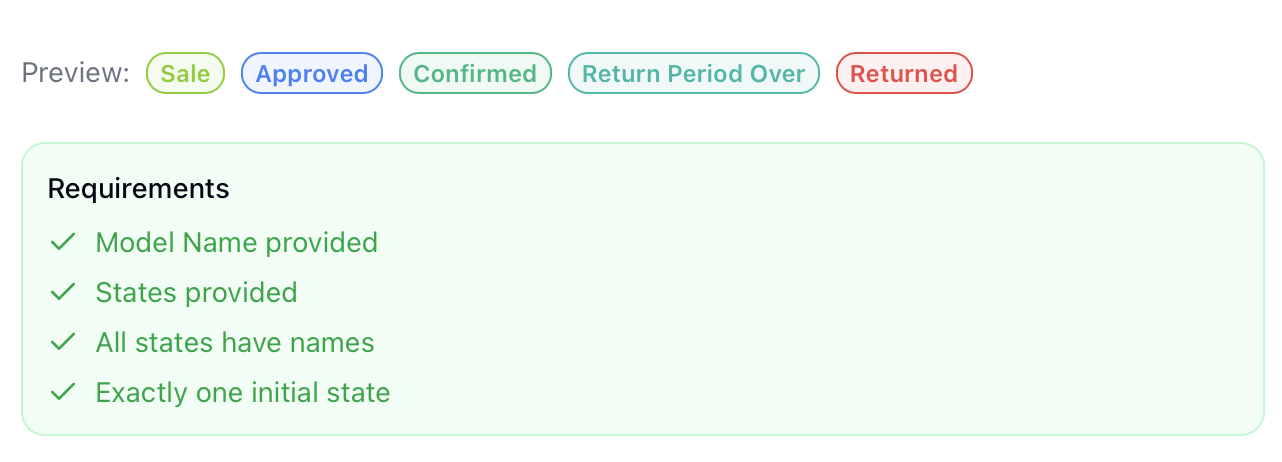
Configuring sales state models now shows clearer, more specific validation messages when the configuration is incomplete or inconsistent. Errors and warnings are surfaced inline next to the relevant fields, so you can see exactly what needs to be fixed before saving.
Calendar Subscription
Your Sellfaster follow-up calendar can now be subscribed to from any external calendar application — Google Calendar, Apple Calendar, Outlook, or any app that supports the iCalendar (ICS) format.
Personal calendar
- Open your personal calendar in Sellfaster
- Click the Subscribe button in the calendar header
- A dialog opens with your unique subscription URL
- Copy the URL and add it as a new calendar in your external app (use "Subscribe from URL" or "Add internet calendar")
- Your follow-ups appear in the external app and stay in sync
The personal subscription URL contains only your own follow-ups.
Team calendar
The same subscribe button is available on the team calendar. The team subscription URL includes all follow-ups across the team, not just your own.
Regenerating your token
If you need to revoke access to a subscription URL (for example, if it was shared unintentionally), click Regenerate token in the subscription dialog. The old URL stops working immediately and a new one is issued. Anyone using the old URL will need to re-subscribe with the new one.